
Pixio Tutorials
Getting started with Pixio
Short narrated lessons filmed in the real app. Each one walks through a single task from start to finish, with chapters, a transcript and a link to try it on your own account.
42 lessons7 modules~1 min each
Start lesson 0142 of 42 lessons published
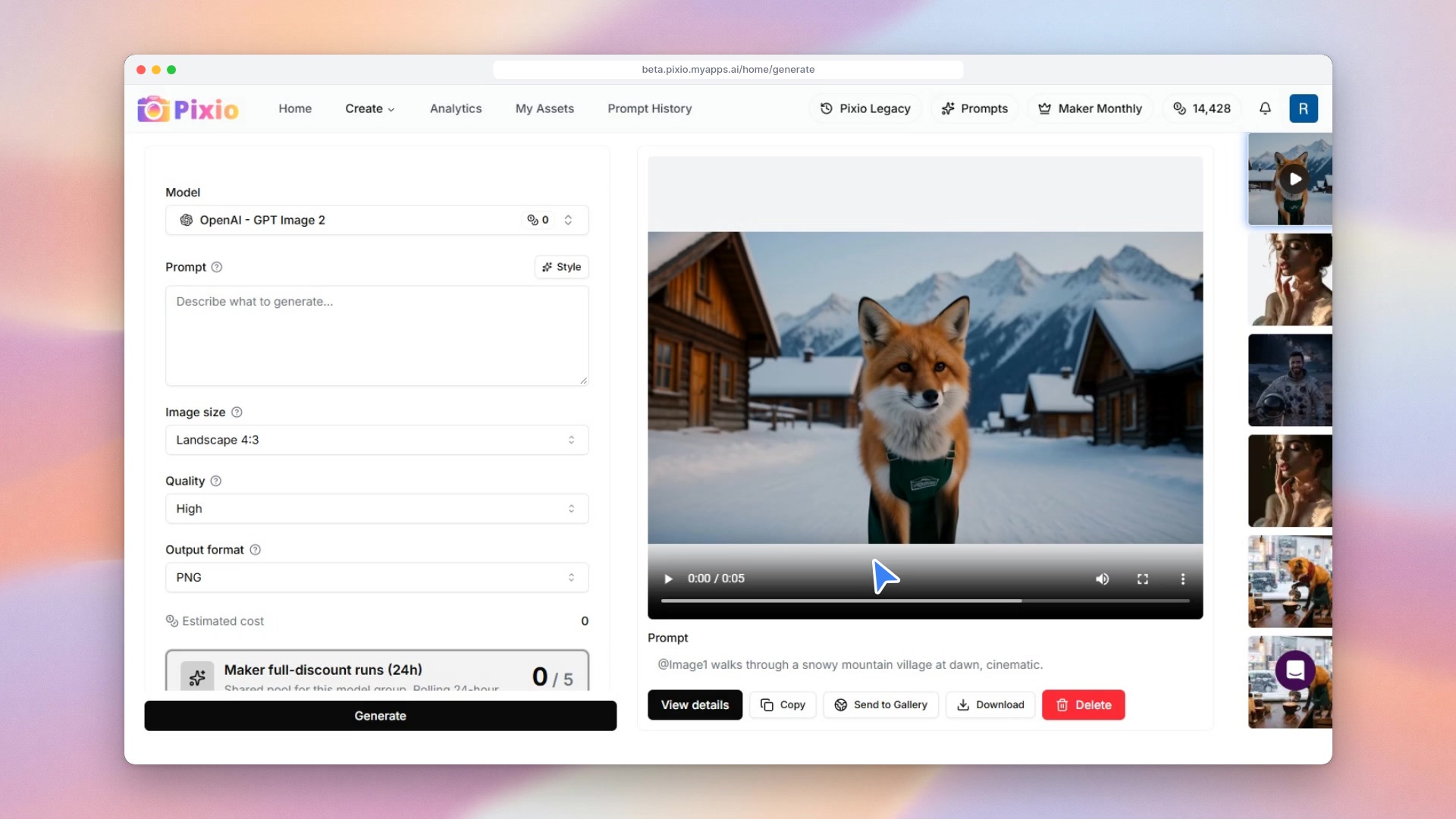 Lesson 01Your first image
Module 1
Generate
Make images and videos, and find your way around the Generate page.
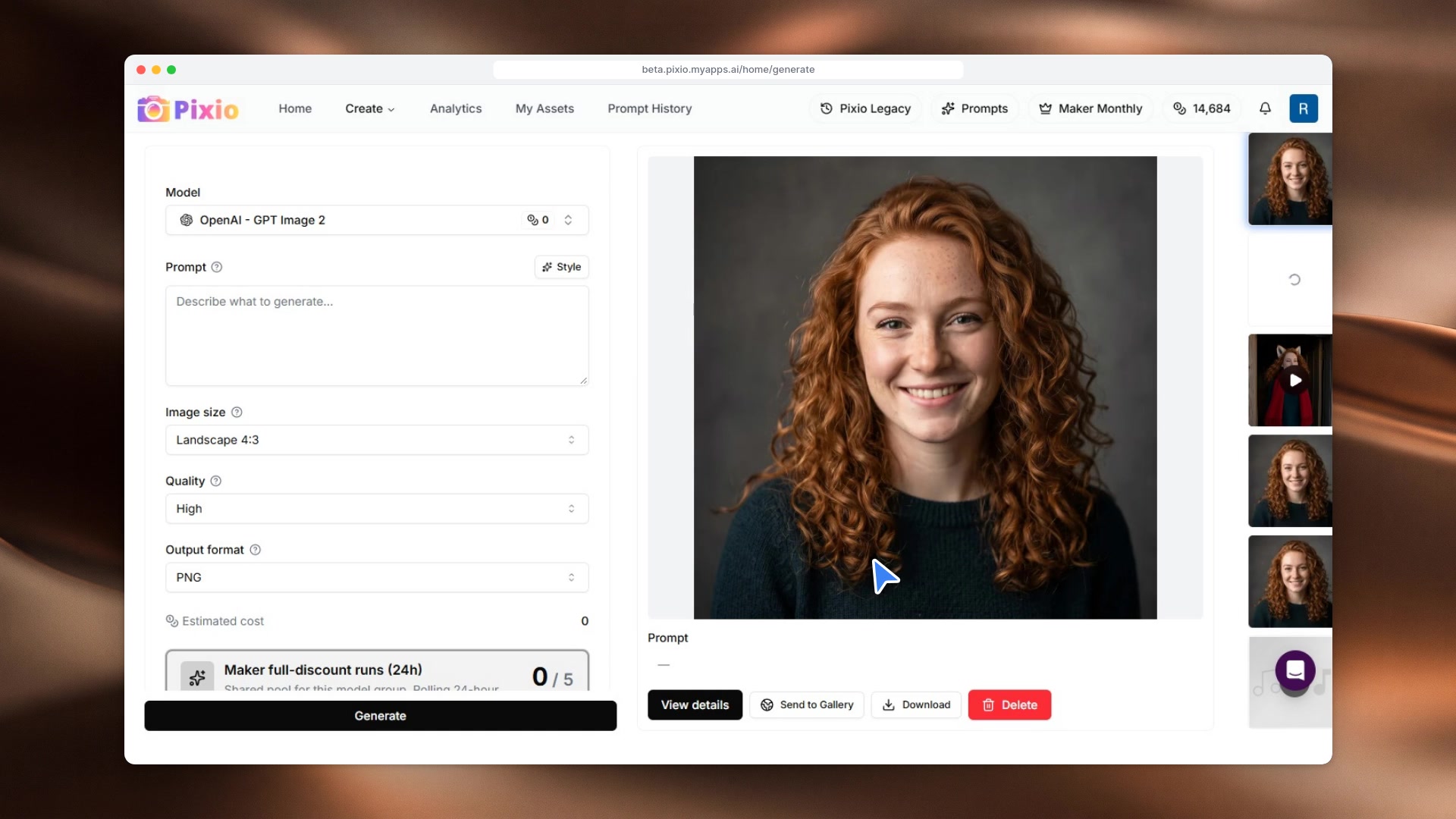
- 1:18Lesson 011:18Your first imageOpen Generate, pick Nano-Banana 2.1, write a prompt the way you would brief a photographer, set the frame and resolution, check the cost, and download the finished image.Watch lesson
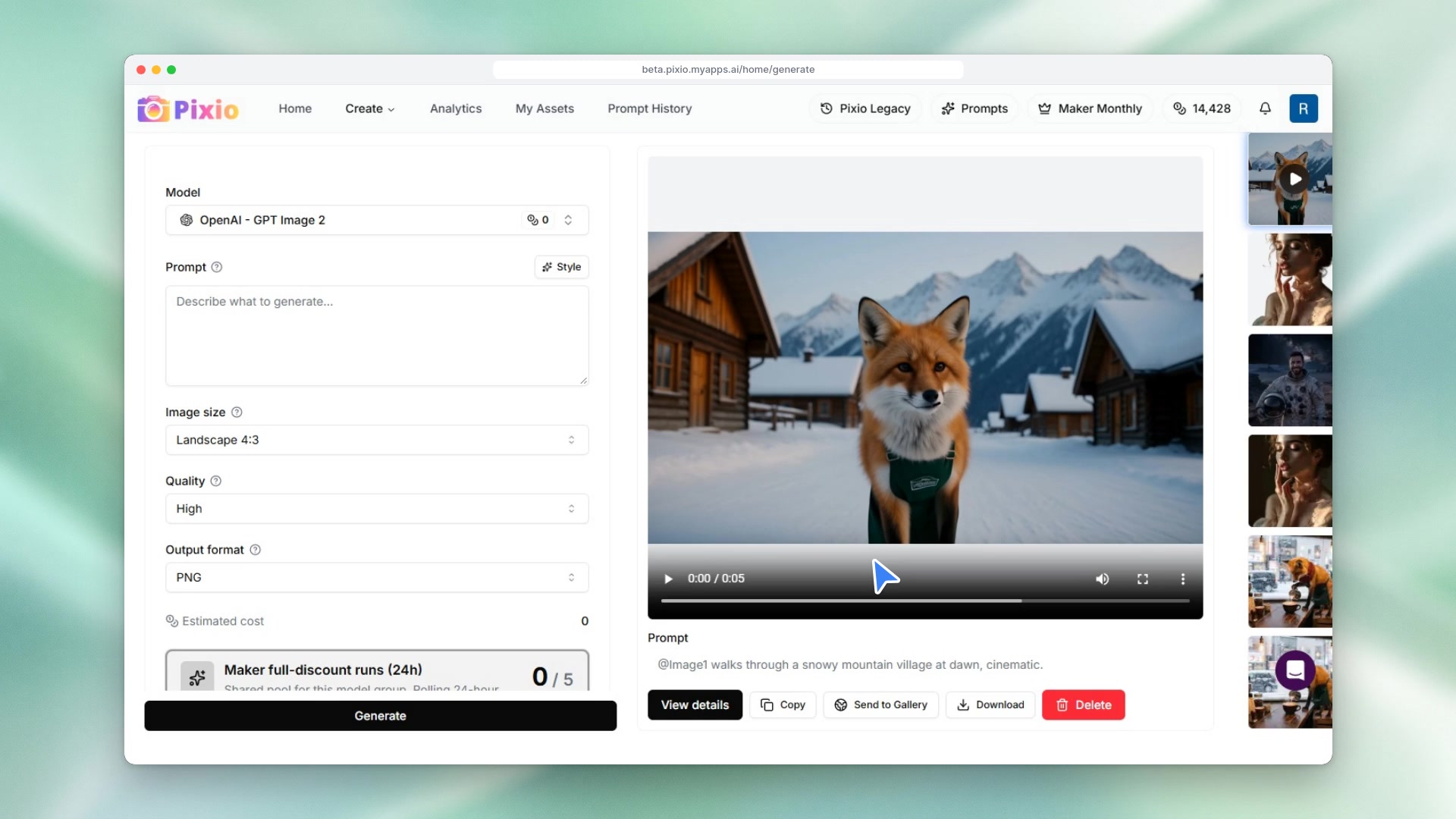 1:38Lesson 021:38Making a videoPick an image-to-video model, describe the motion, choose a start frame from your assets, set the length and sound, and bring a still image to life.Watch lesson
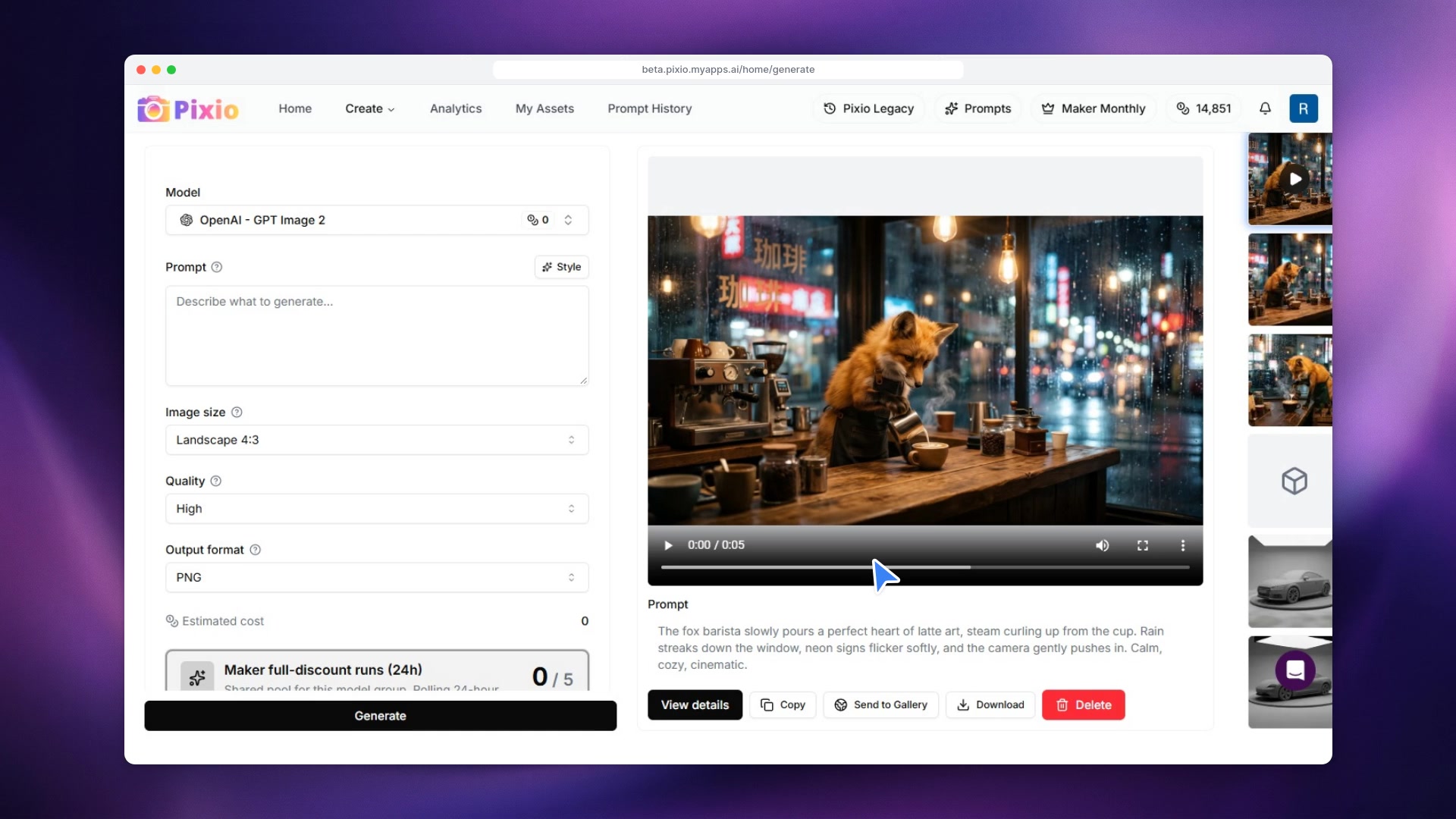 1:11Lesson 031:11Getting more from GenerateFilter the model library by type and length, read the tip on any setting, add a look from the Style gallery, and reuse prompts from Prompt History.Watch lesson
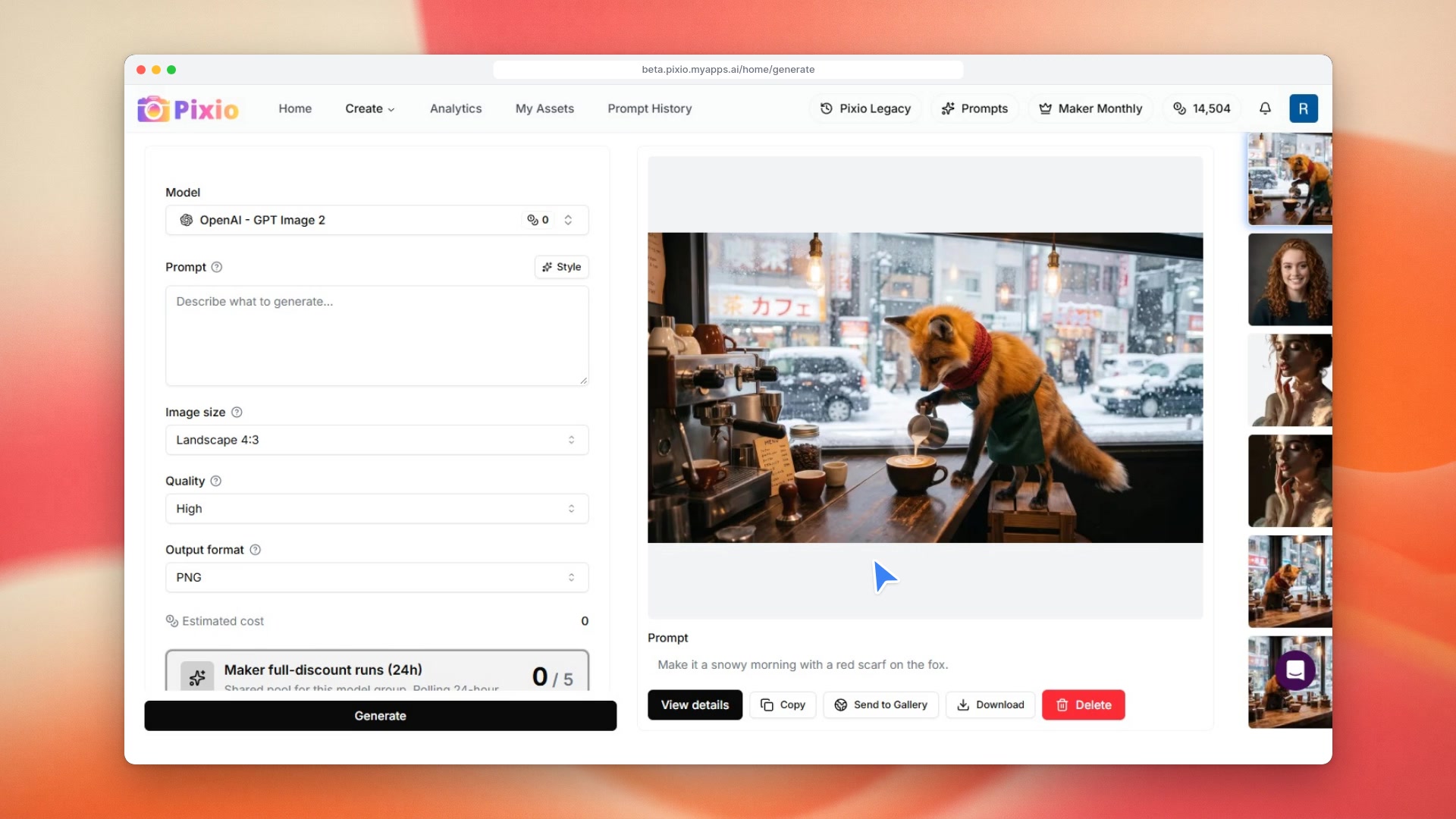 1:14Lesson 041:14Edit an image with wordsPick an image-edit model, describe the change in plain words, choose the picture from your assets, and get an edited copy while the original stays untouched.Watch lesson
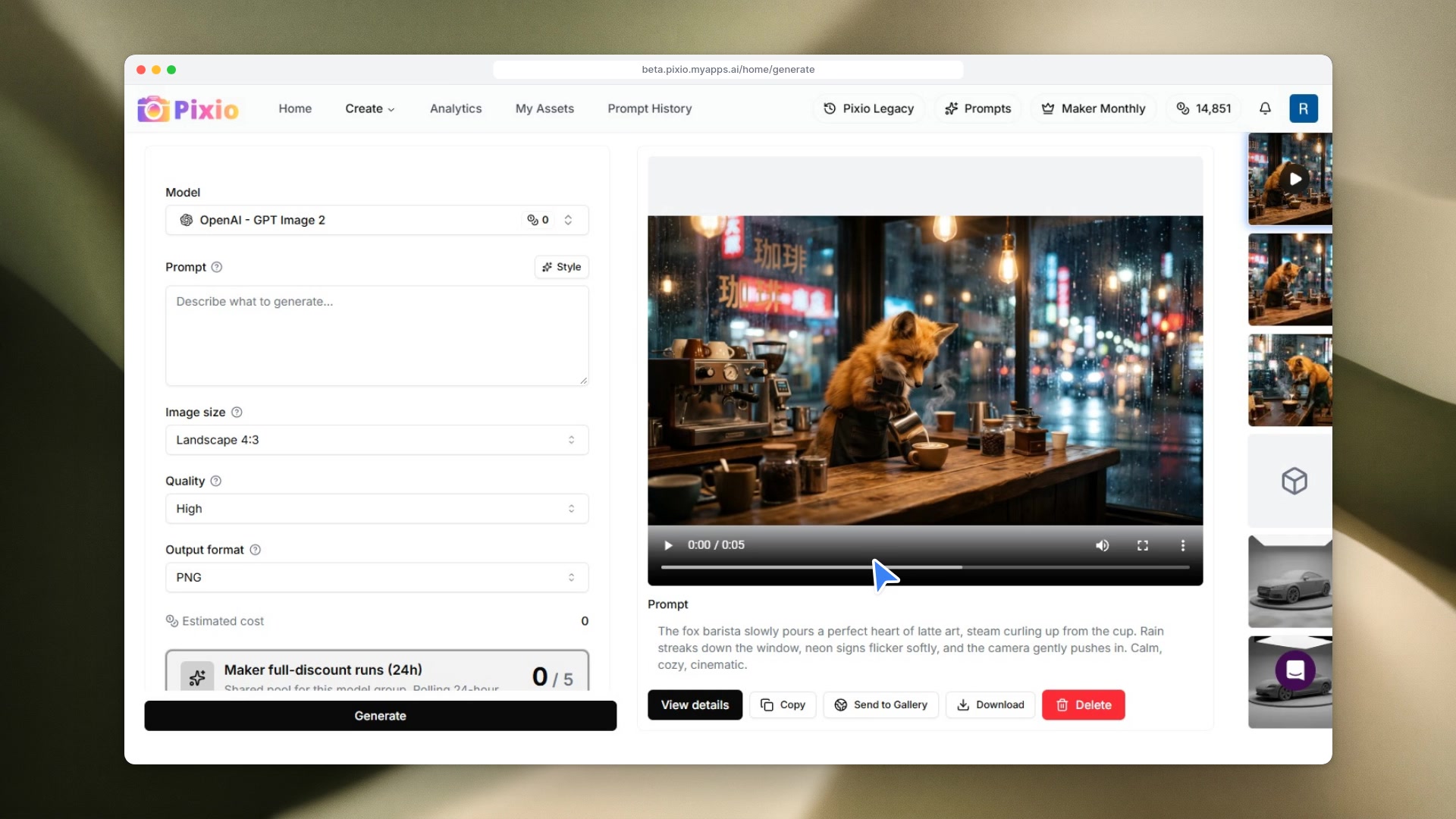 1:27Lesson 051:27Text to videoNo start image needed: pick a text-to-video model, write the prompt like a shot list, set duration and aspect ratio, and generate a clip from words alone.Watch lesson
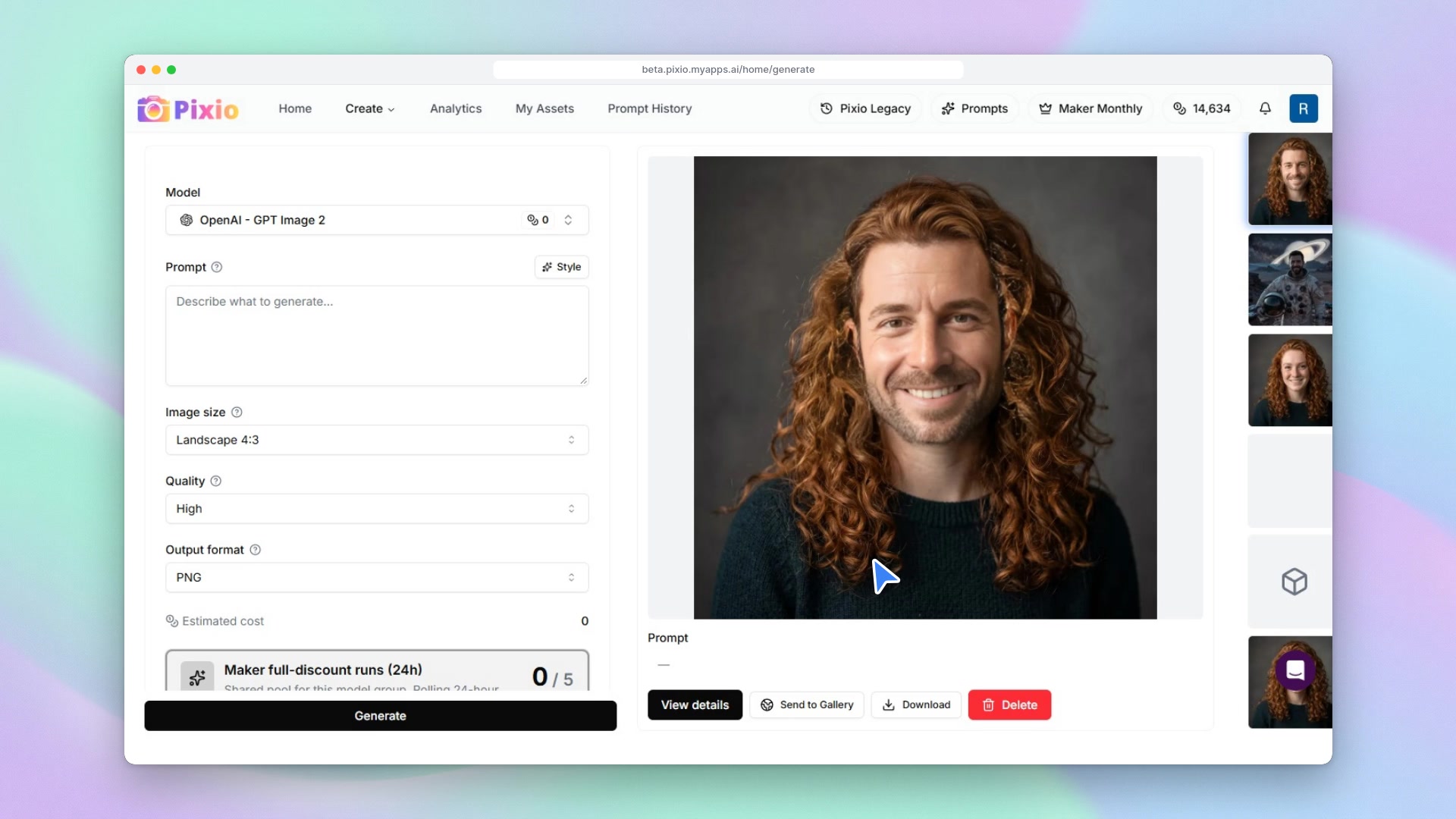
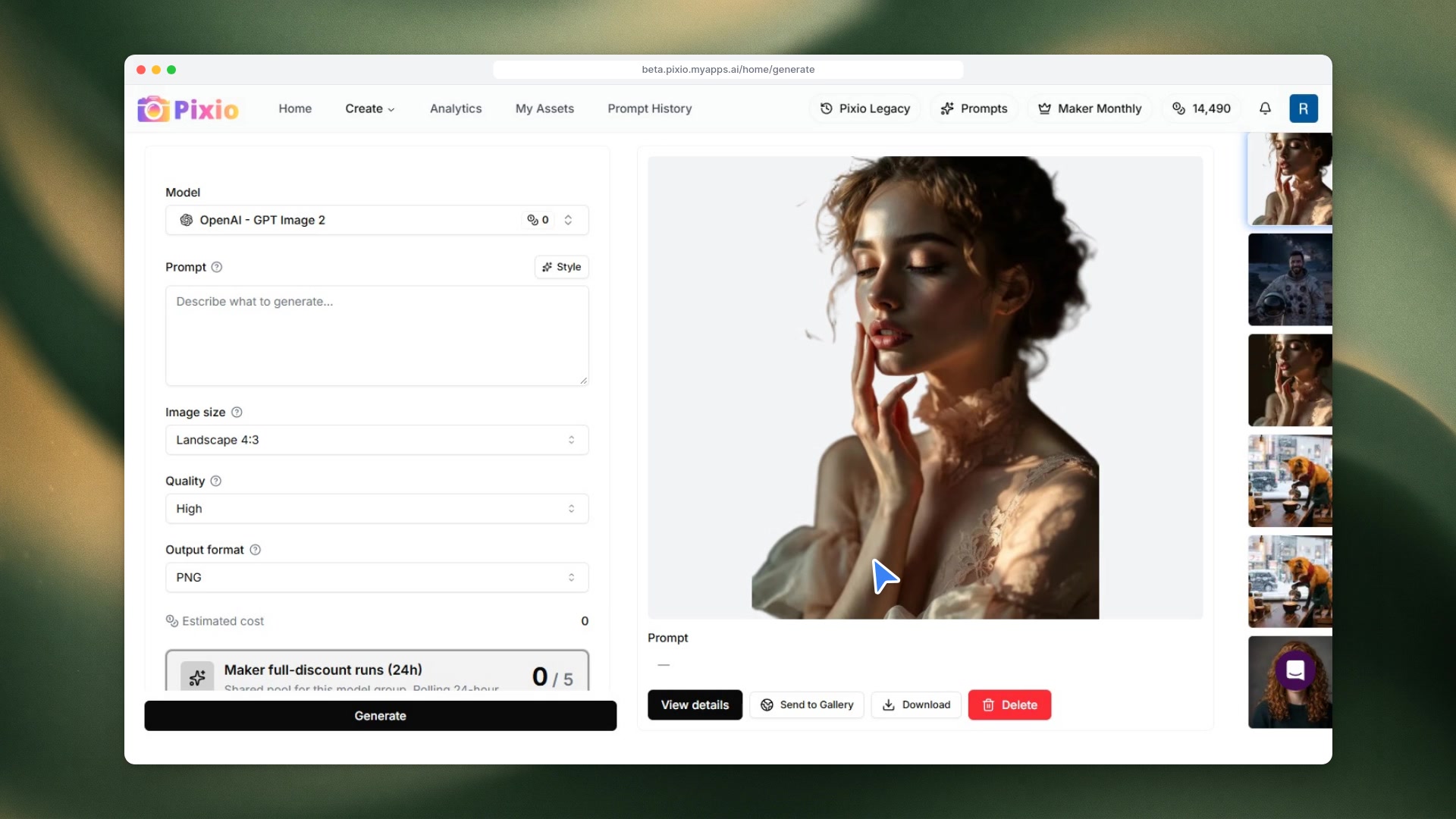 1:23Lesson 061:23Keep a character consistentUse a reference-to-video model to put the same character into a brand new scene: add the reference from your assets and point to it in the prompt with @Image1.Watch lesson
 1:20Lesson 071:20Restyle a videoChange a clip you already have with a video-to-video model: pick the source from your assets, describe the change, set resolution and length, and generate a restyled version.Watch lesson
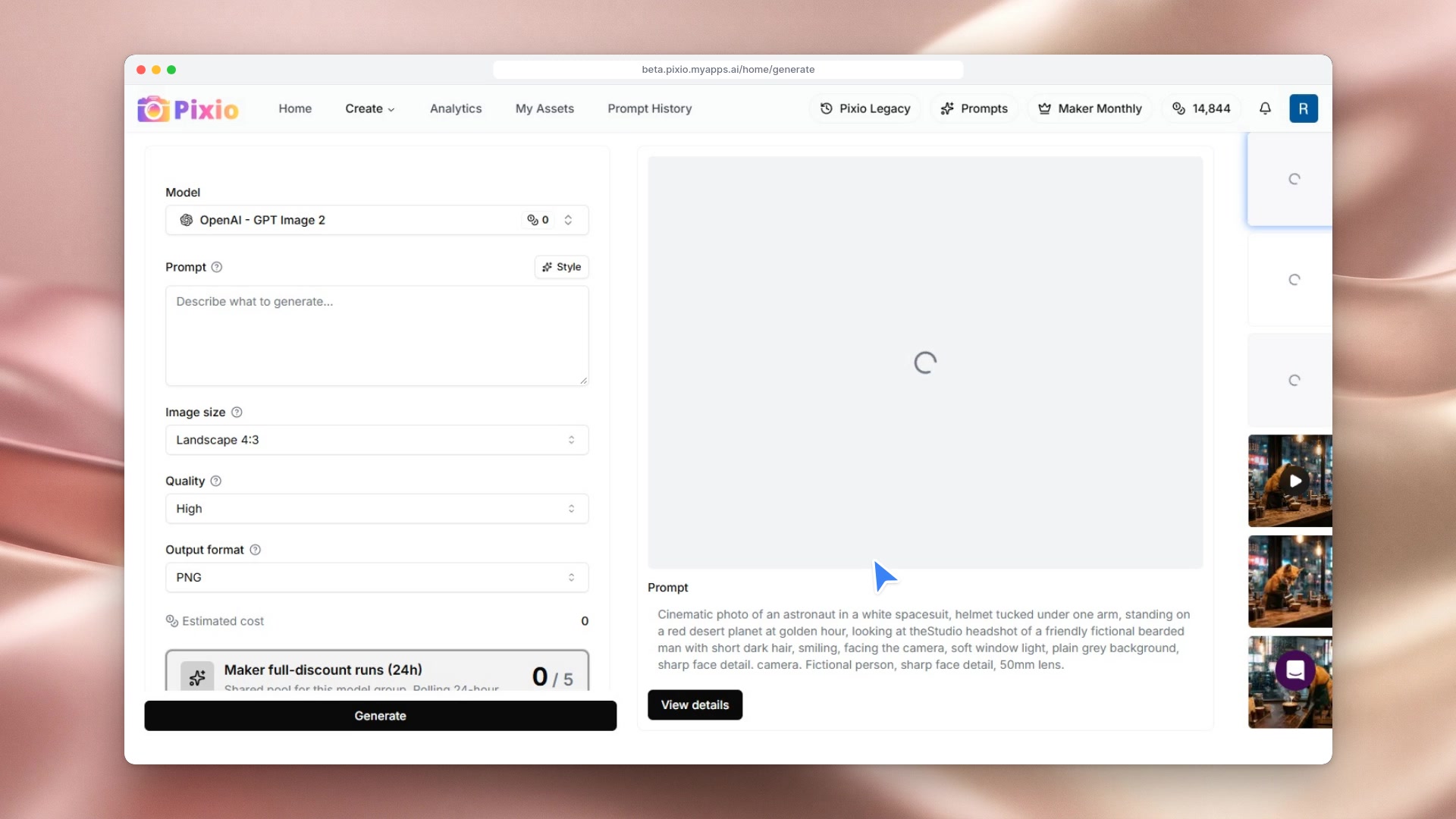
 1:55Lesson 081:55Plan the first and last frameUse a first/last frame model to control exactly where a video starts and ends: pick both frames from your assets, prompt the transition and generate.Watch lesson
Module 2
Create more
Music, voice, 3D, quick fixes and your own trained style.
 1:20Lesson 091:20Make a songPick a Mureka music model, describe what the song is about and its style, choose a version, and generate a full song with lyrics in a minute.Watch lesson
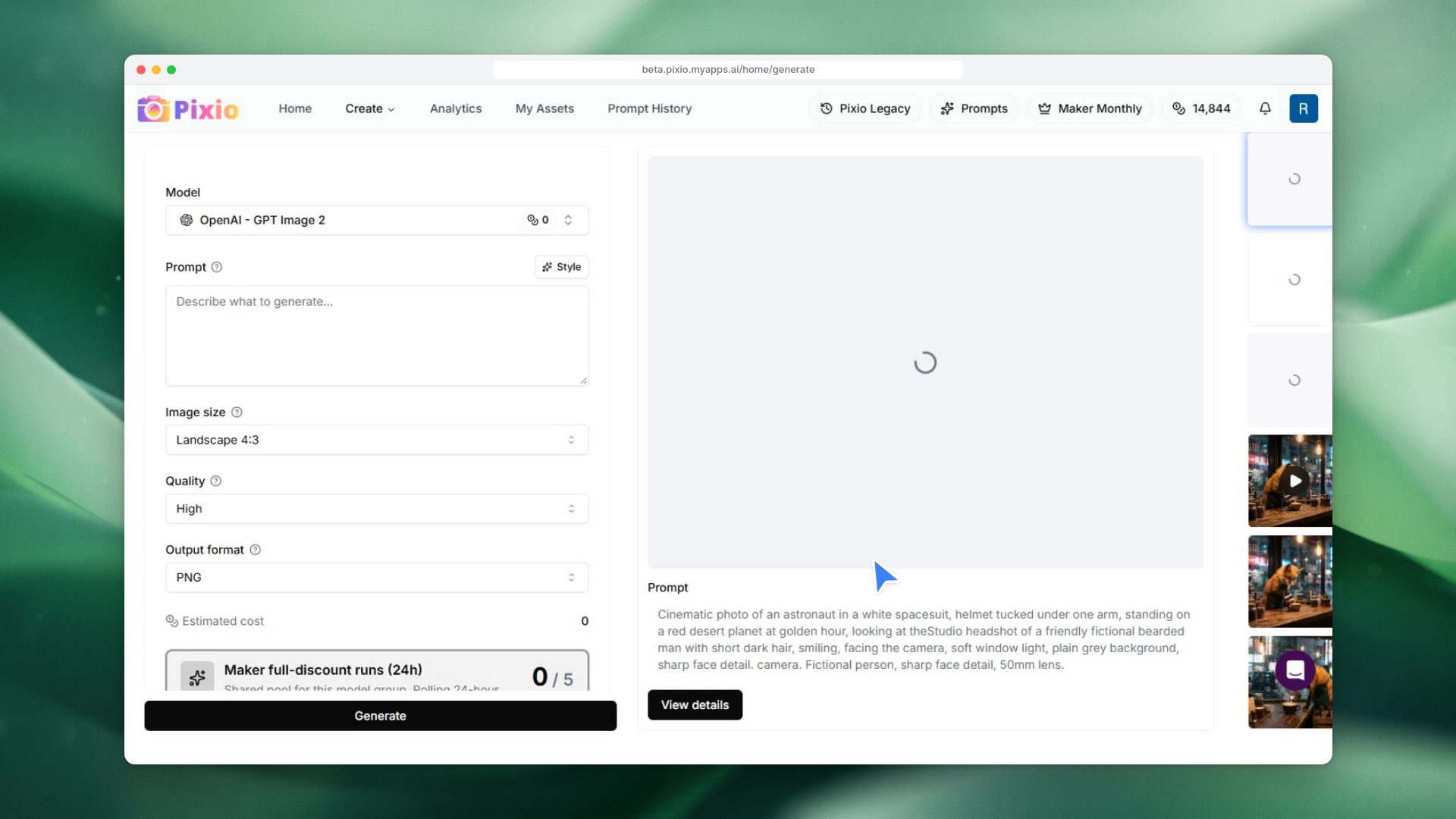 1:14Lesson 101:14Voice-over with text to speechTurn any text into a natural voice-over: pick a speech model, type the line, choose a voice, tune speed and pitch, and download the audio.Watch lesson
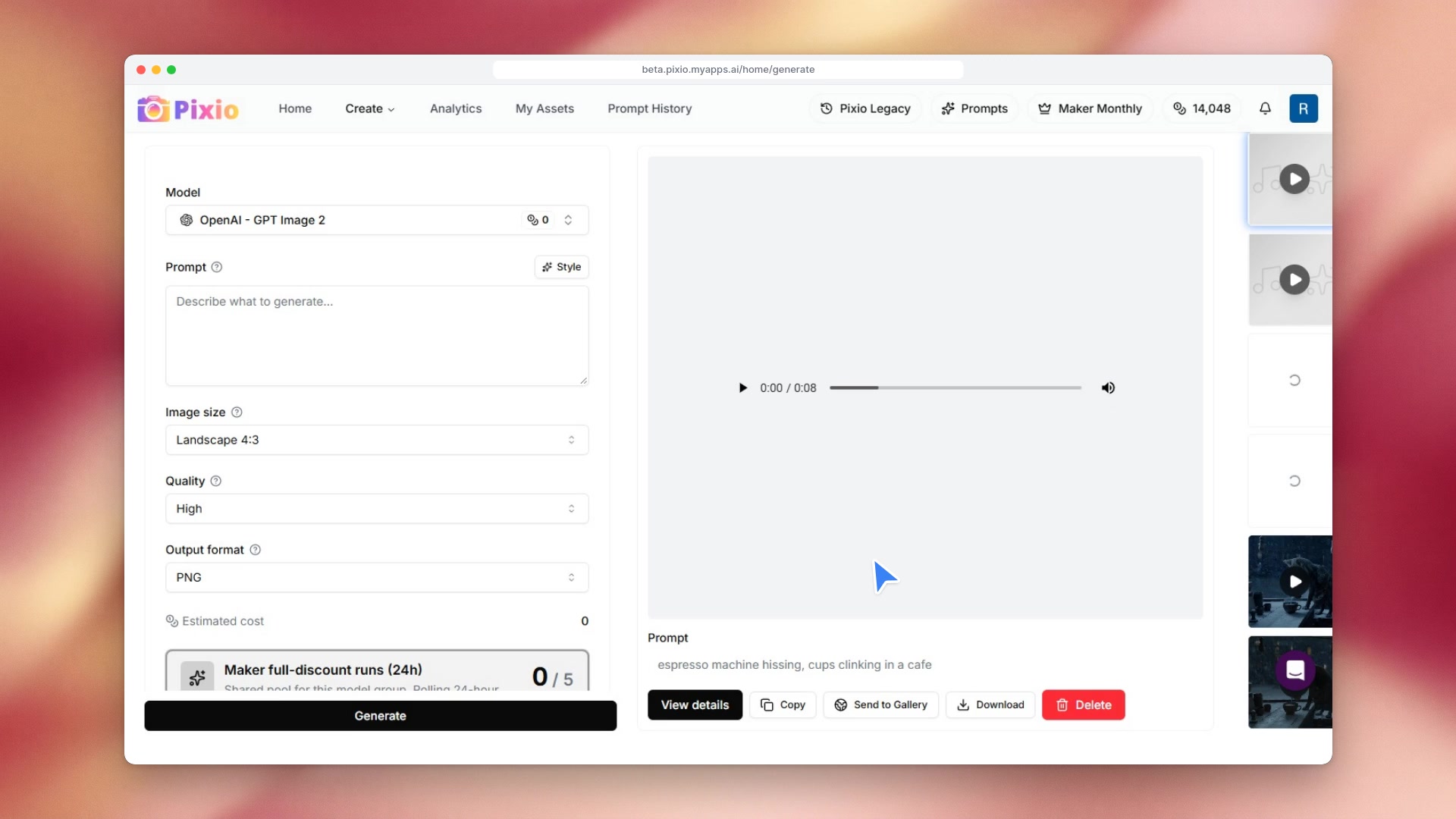 1:31Lesson 111:31Sound effects and adding audioMake a sound effect from a short description, then put it on a video with the free Add Audio to Video tool.Watch lesson
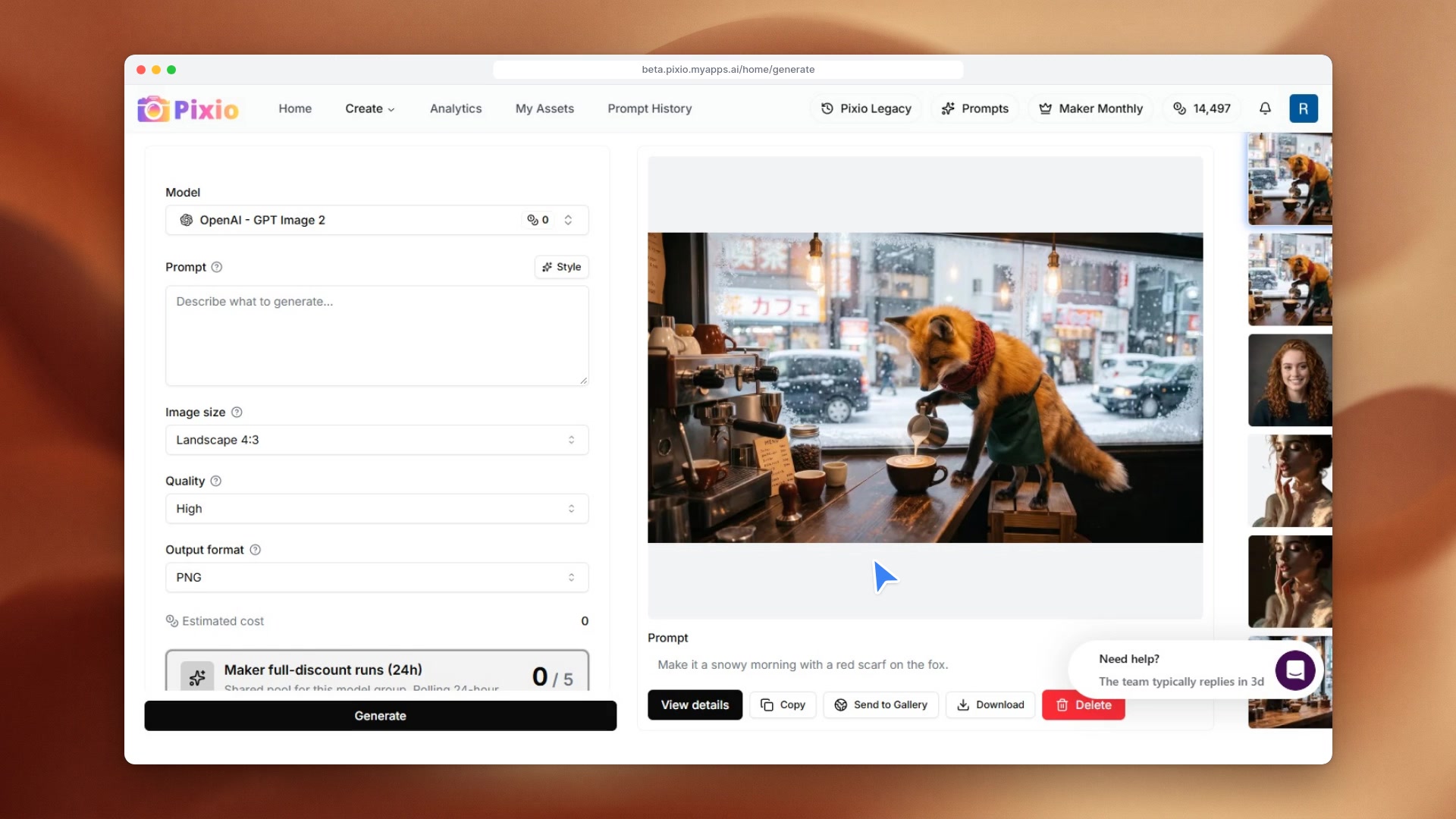 1:15Lesson 121:15Upscale and remove backgroundsUse Pixio's free image tools: upscale a picture to twice the size, then cut out its subject on a transparent background.Watch lesson
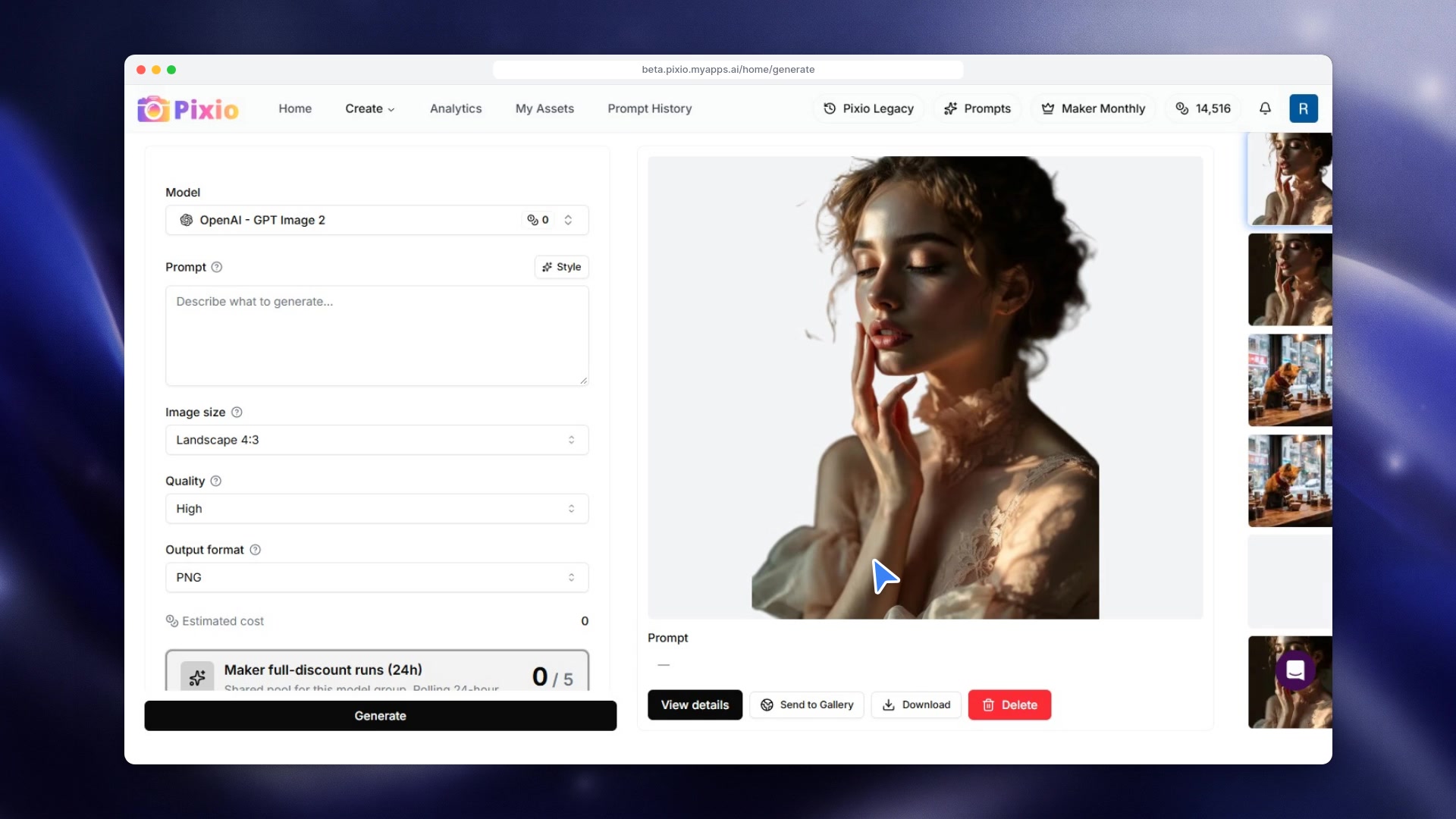 1:17Lesson 131:17Face swapPut one face onto another photo with Advanced Face Swap: pick the target photo and the face to use from your assets, then generate.Watch lesson
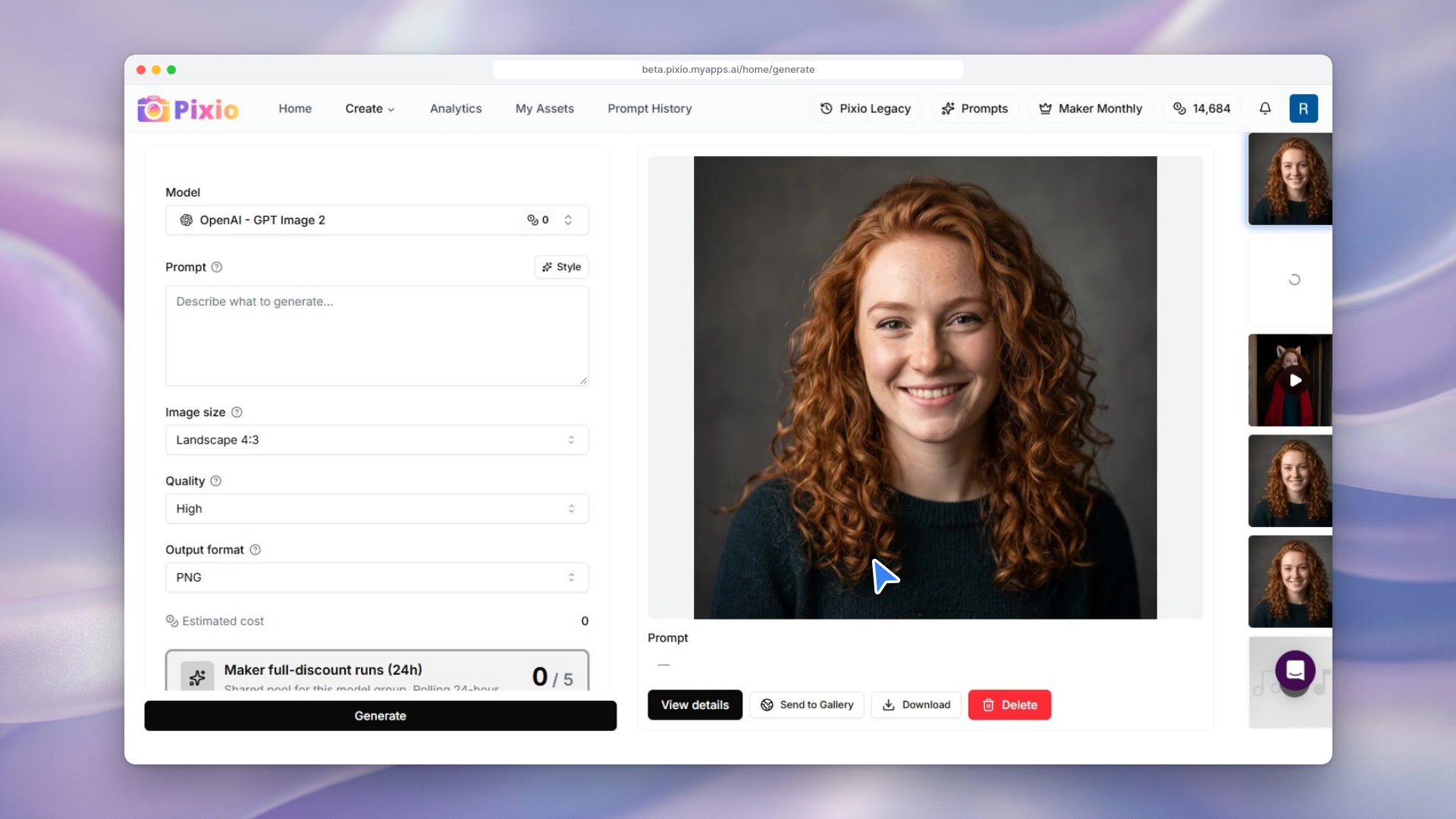 1:19Lesson 141:19Make a 3D modelTurn a sentence into a 3D model with Meshy, spin it in the 3D viewer, and use the quick actions to print, refine or regenerate it.Watch lesson
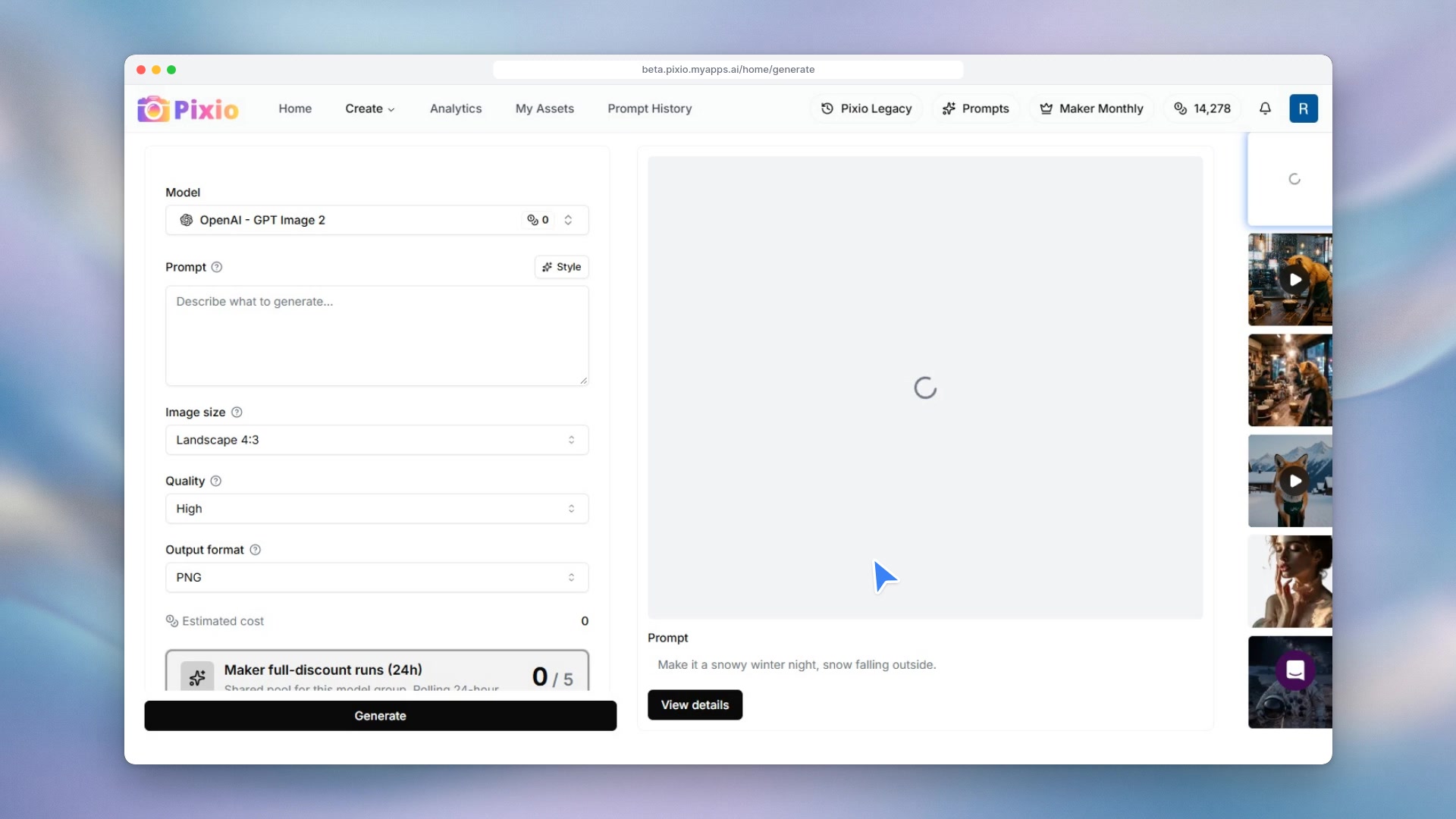 1:36Lesson 151:36Order a 3D printTurn a 3D model into a real object: open Print from the quick actions, choose material, size, color and finishing, pick shipping and see the price before checkout.Watch lesson
 1:12Lesson 161:12Train your own styleTrain a custom LoRA on your own images: choose a trainer, see the cost up front, set a name and trigger phrase, and add your dataset.Watch lesson
Module 3
Studio tools
Edit videos, layer images and chain models into workflows.
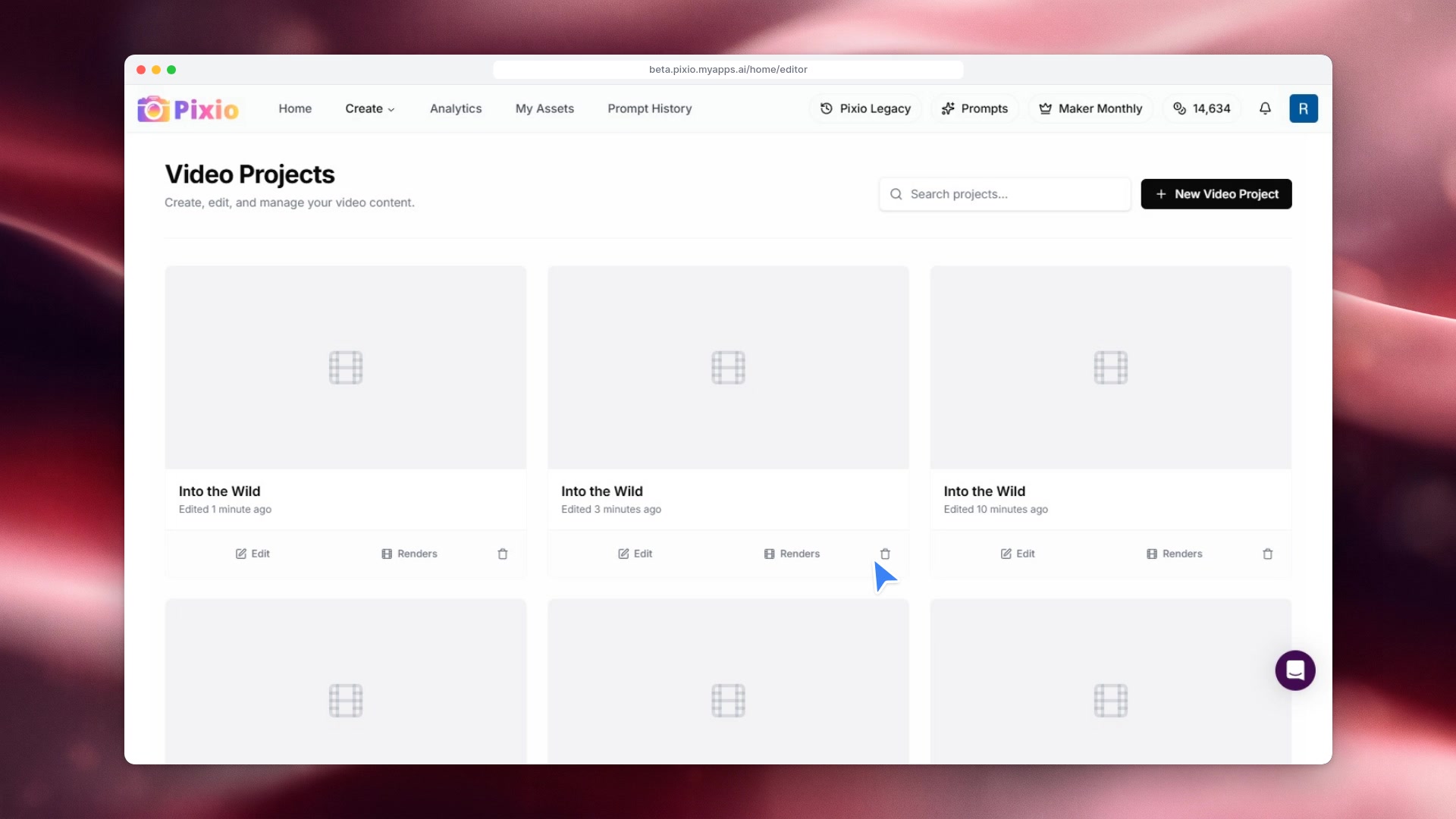 1:05Lesson 171:05The Video EditorTurn your generations into a finished edit: start a project, add clips from your uploads to the timeline, trim, add a title and render.Watch lesson
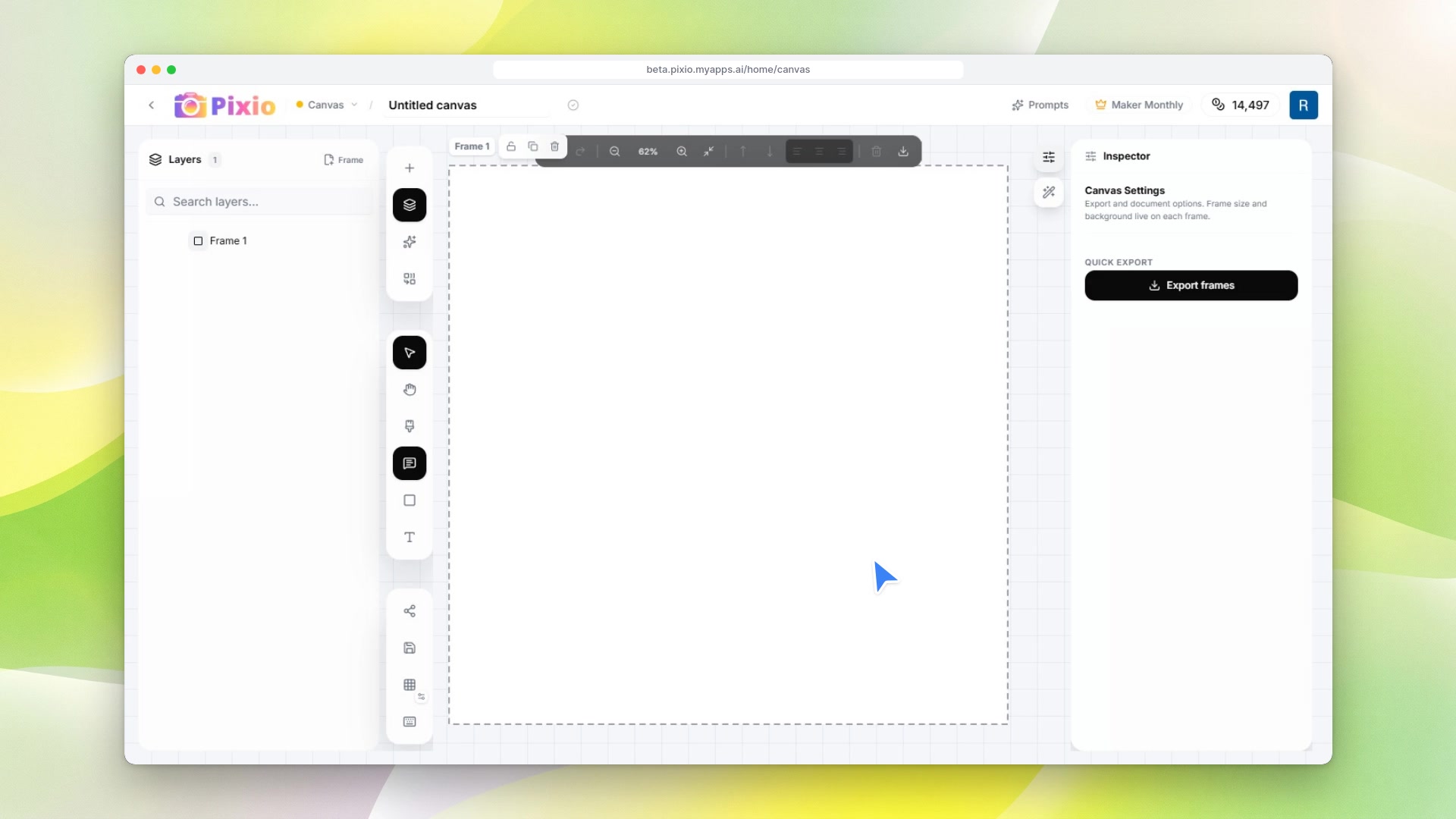 1:10Lesson 181:10CanvasEdit images in layers: drop pictures from your library onto the canvas, mask an area or edit the whole image in plain words, and keep the result as a new layer.Watch lesson
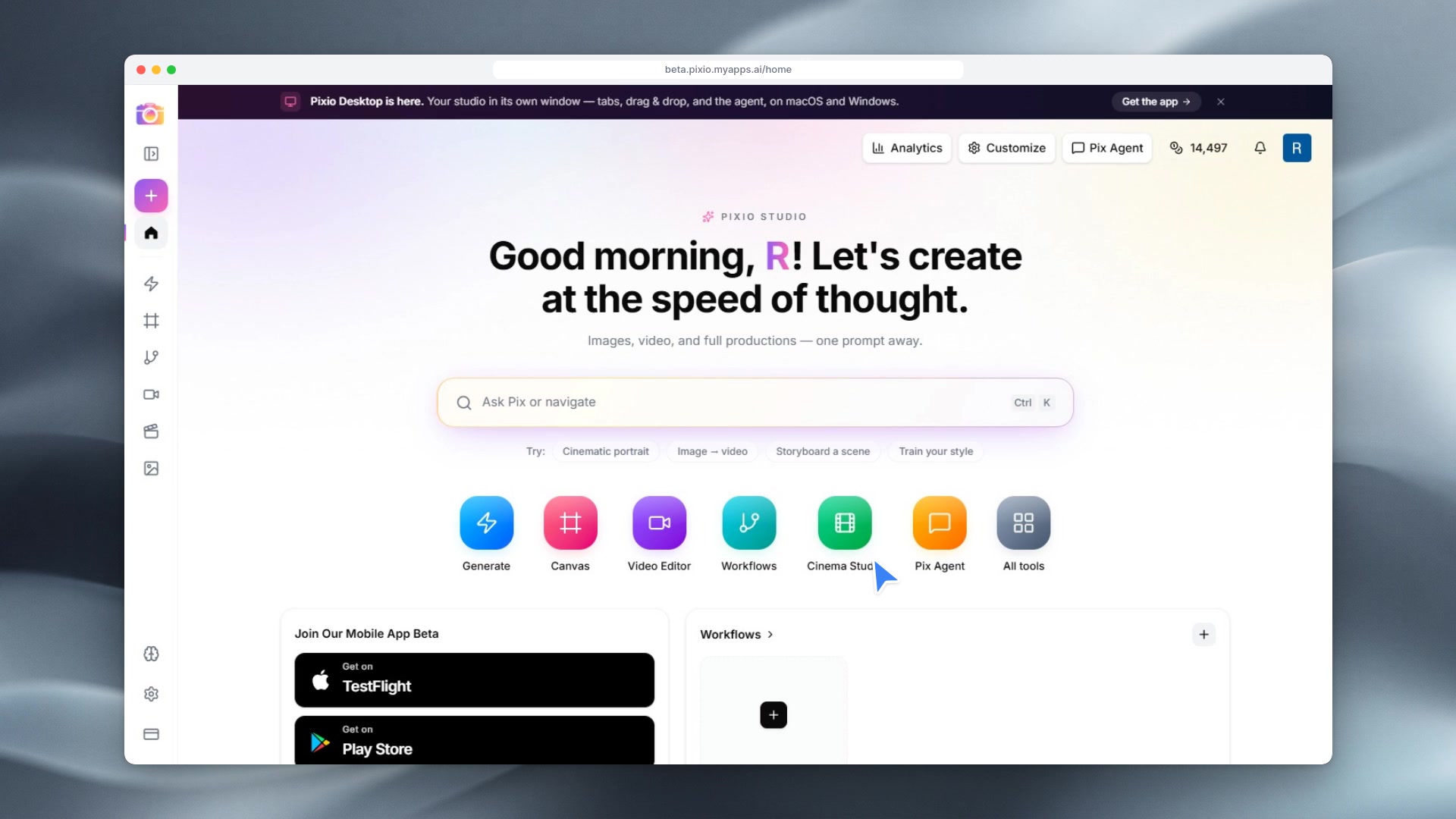 1:14Lesson 191:14WorkflowsChain AI models into one pipeline you can run again and again: add an image node, connect it to an image-to-video node, save and run.Watch lesson
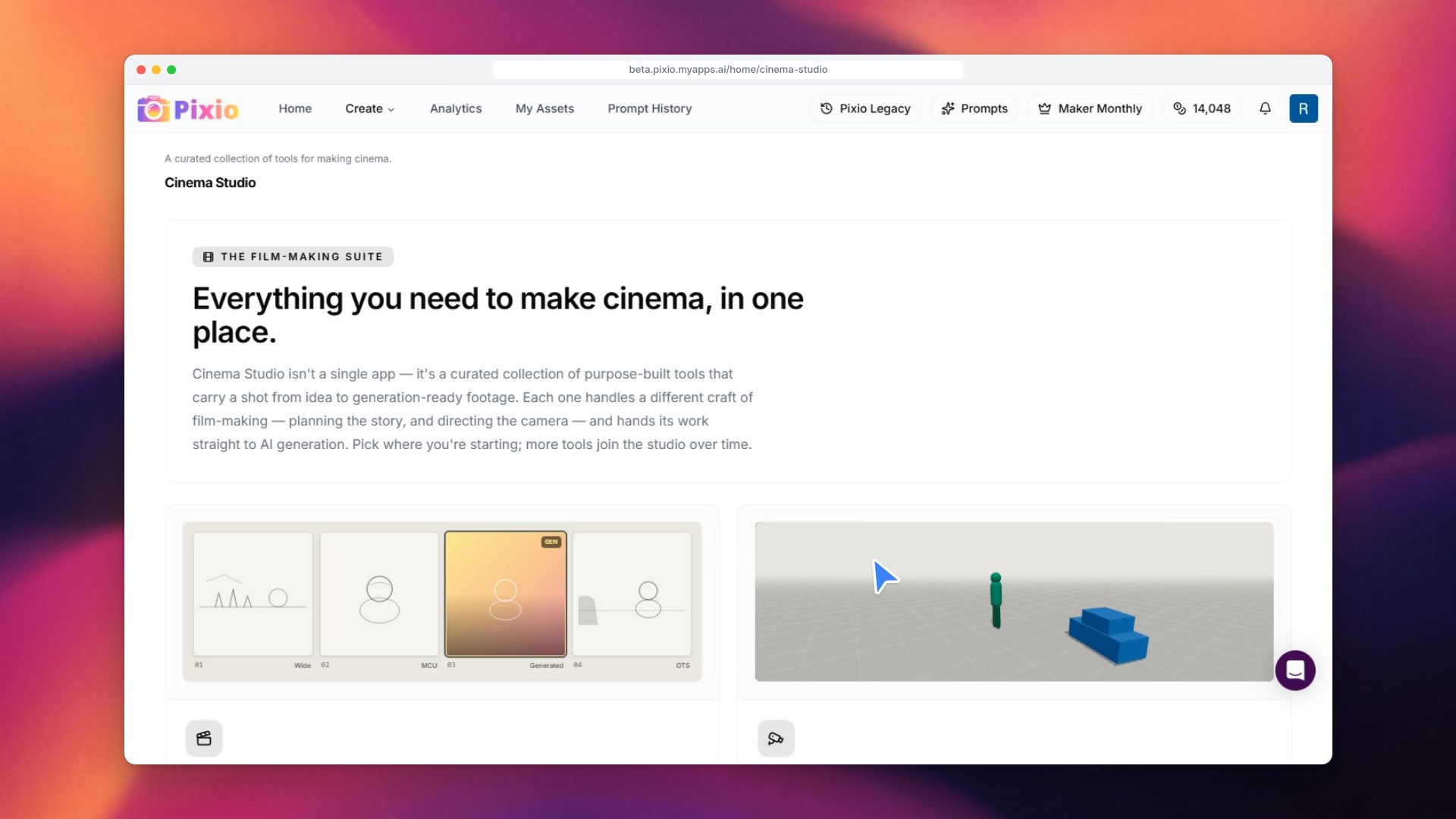 1:26Lesson 201:26Cinema StudioPlan a film before you generate it: build a storyboard from a scene description or starter frames, organize shots into scenes, and keep every shot consistent.Watch lesson
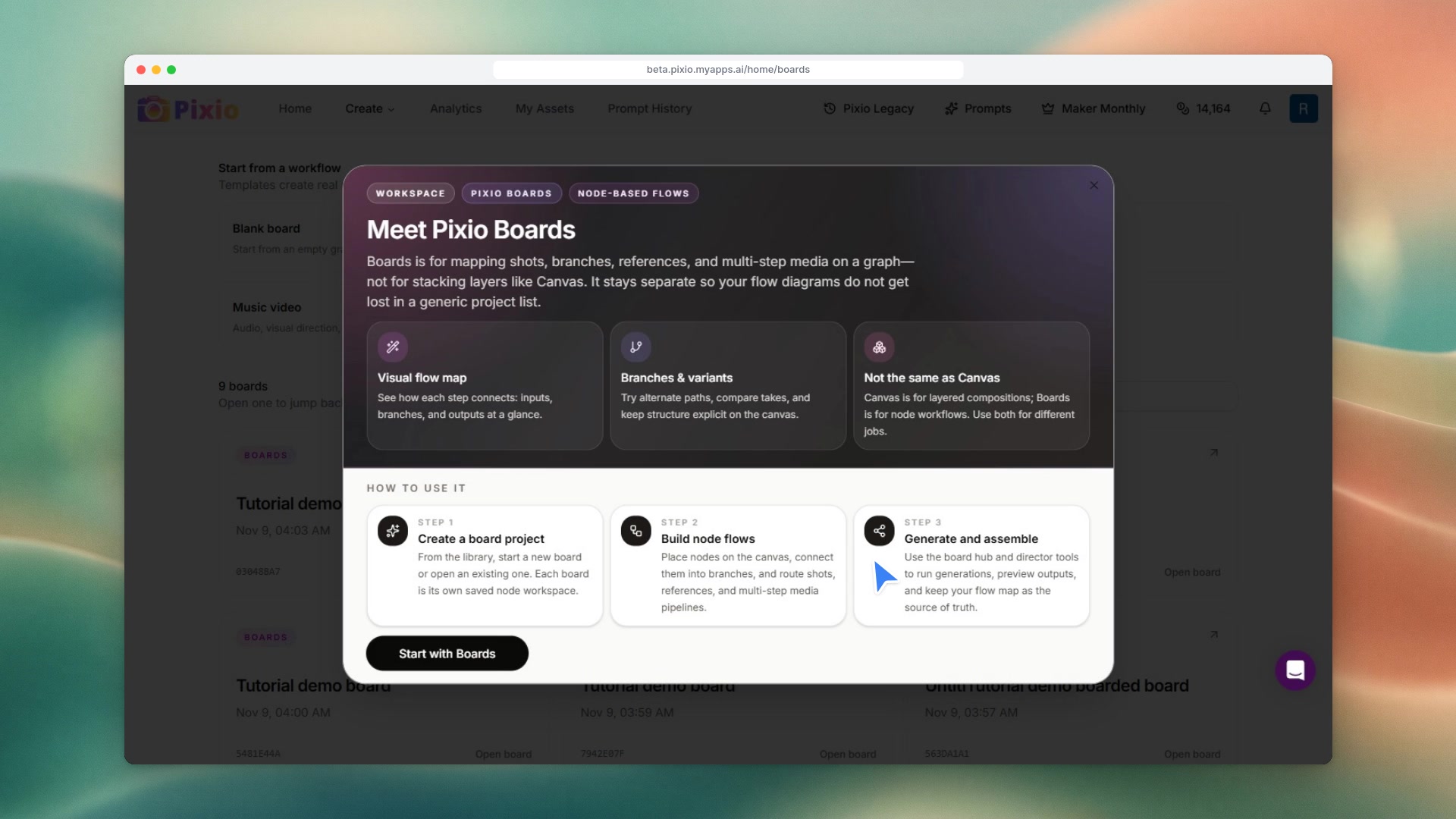 1:22Lesson 211:22BoardsMap a project as a visual flow: start from a template, track every node's status, branch alternate takes, and share the board with collaborators.Watch lesson
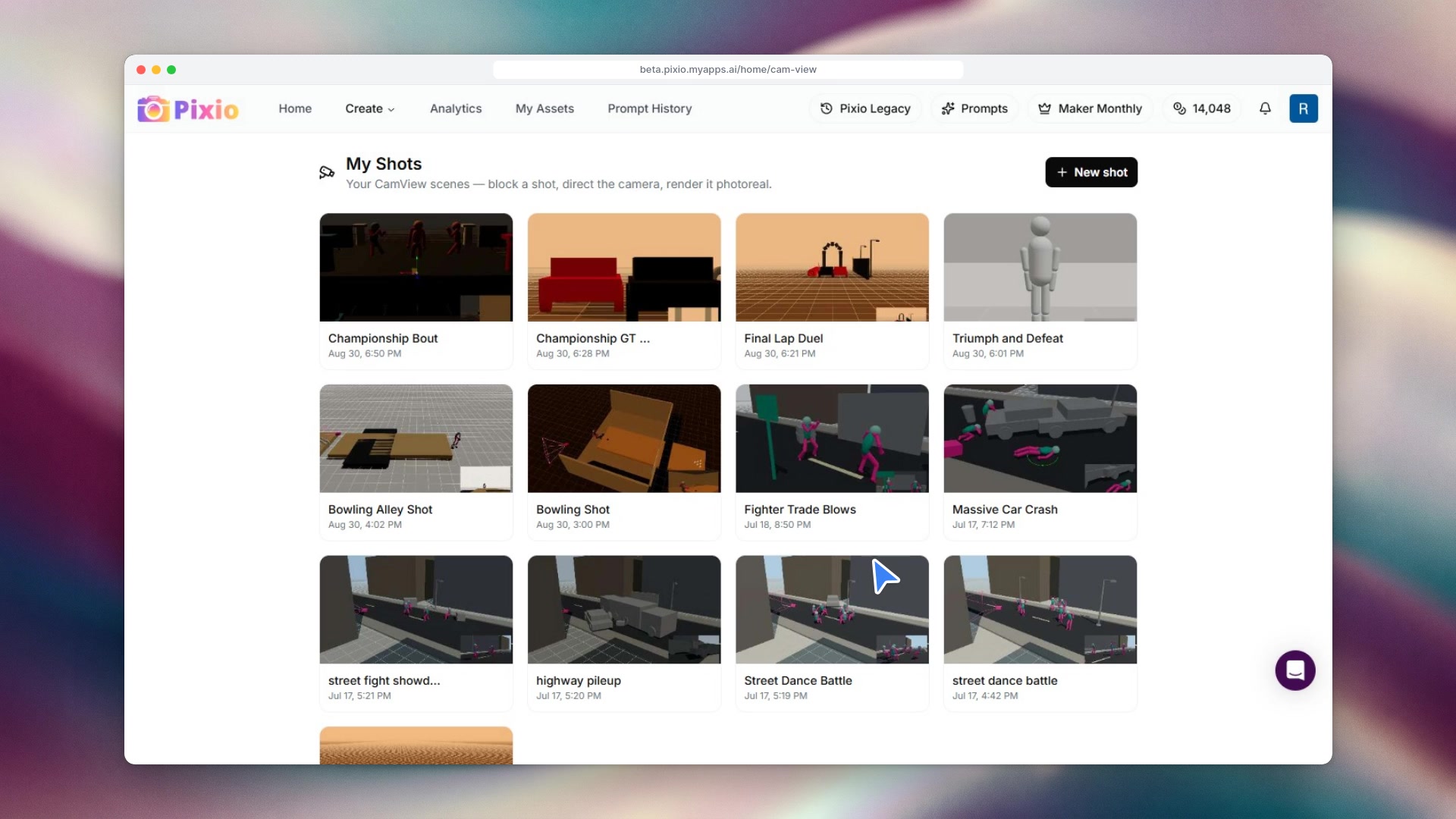 1:07Lesson 221:07CamViewBlock out a 3D shot before you render it: arrange cameras, figures and props, pick a lens, animate on the timeline, fly the camera with your phone, and render the shot.Watch lesson
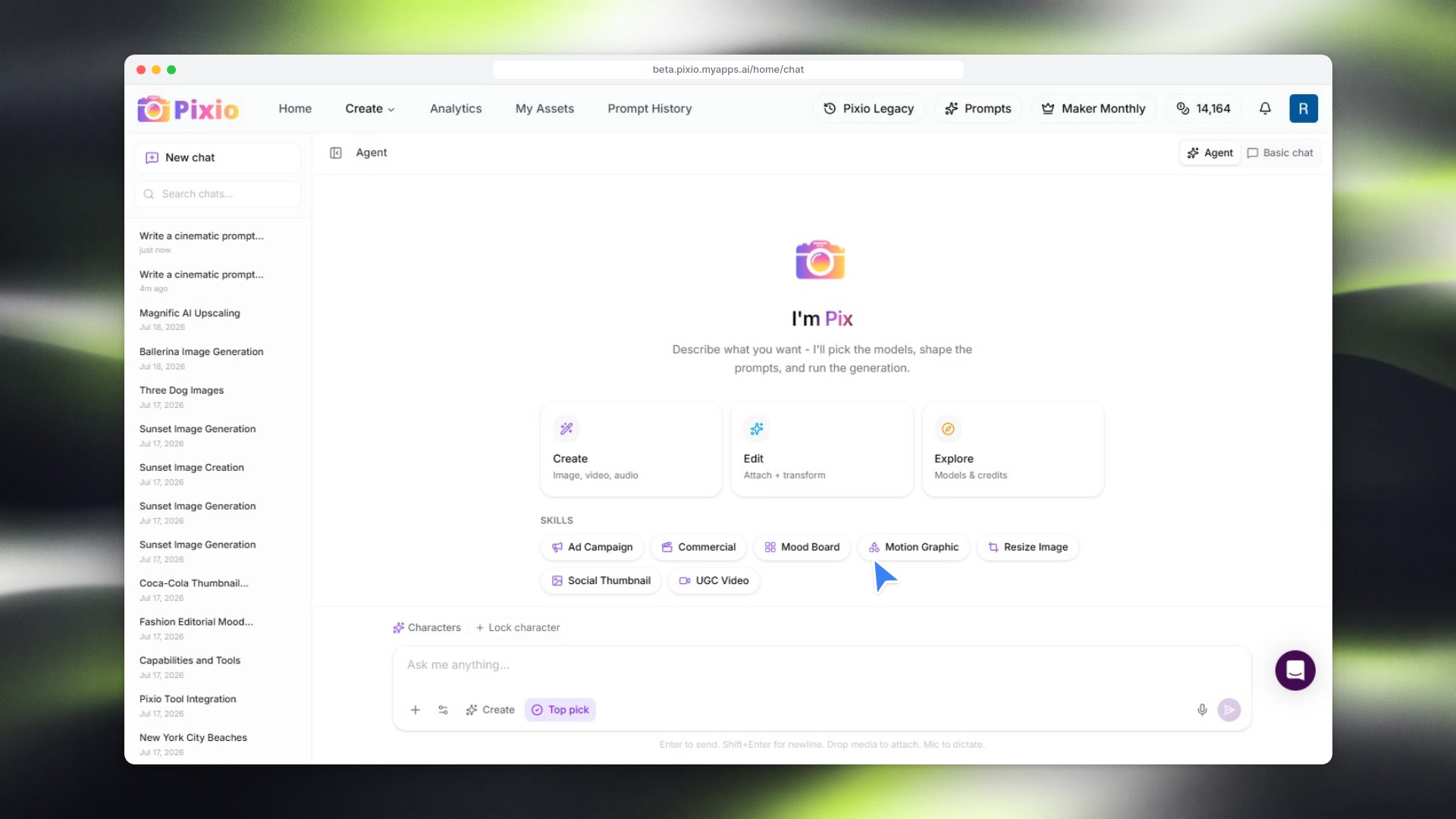 1:15Lesson 231:15Chat with PixAsk Pix, the AI creative assistant, for what you want: it picks models, writes full prompts, explains its choices and can run the generation for you.Watch lesson
Module 4
Your library
Find, organize, share and reuse everything you make.
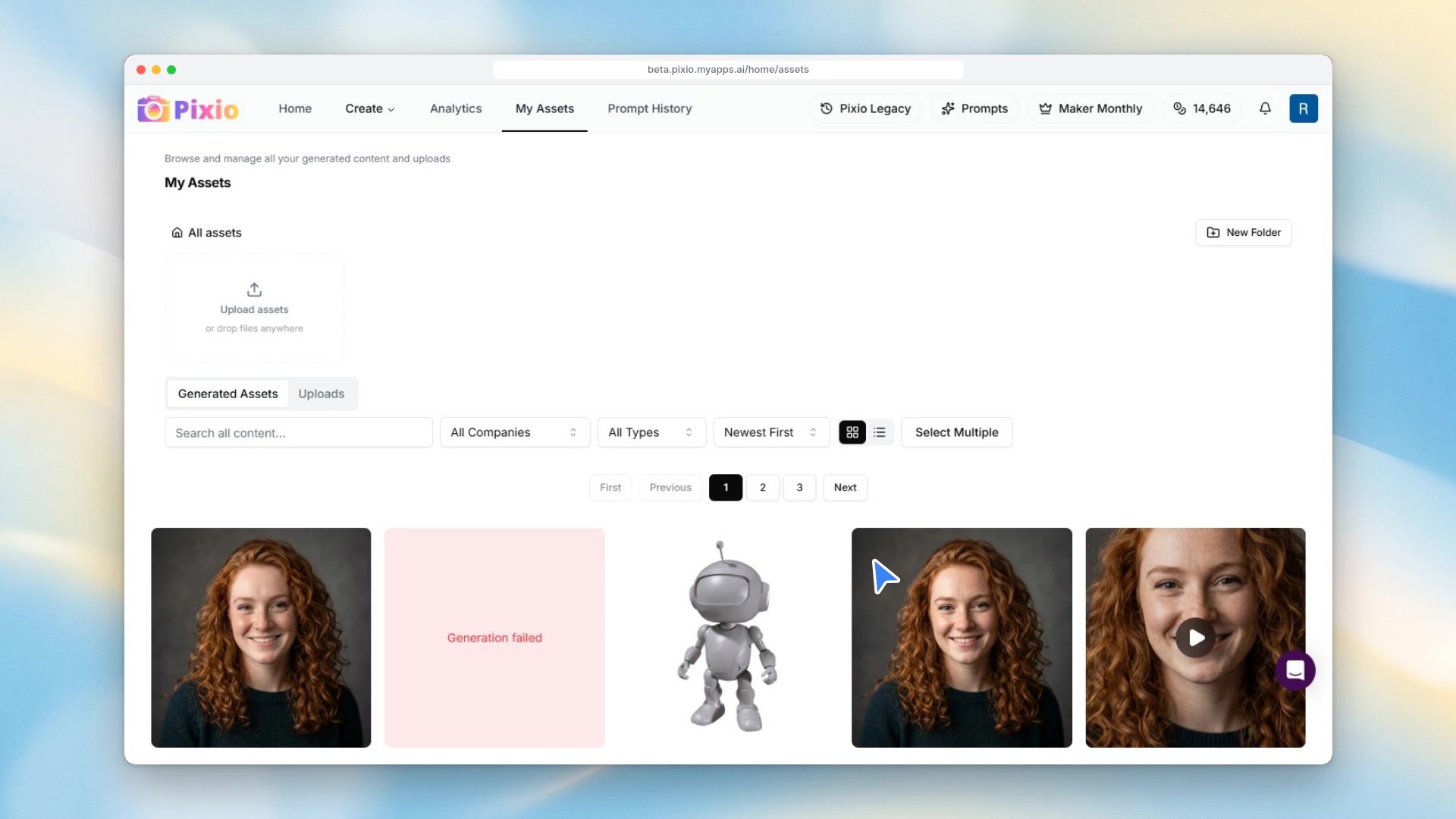 1:41Lesson 241:41My AssetsEverything you generate and upload in one place: search, filter, sort, open details, download, organize into folders, and reuse any asset as an input in Generate.Watch lesson
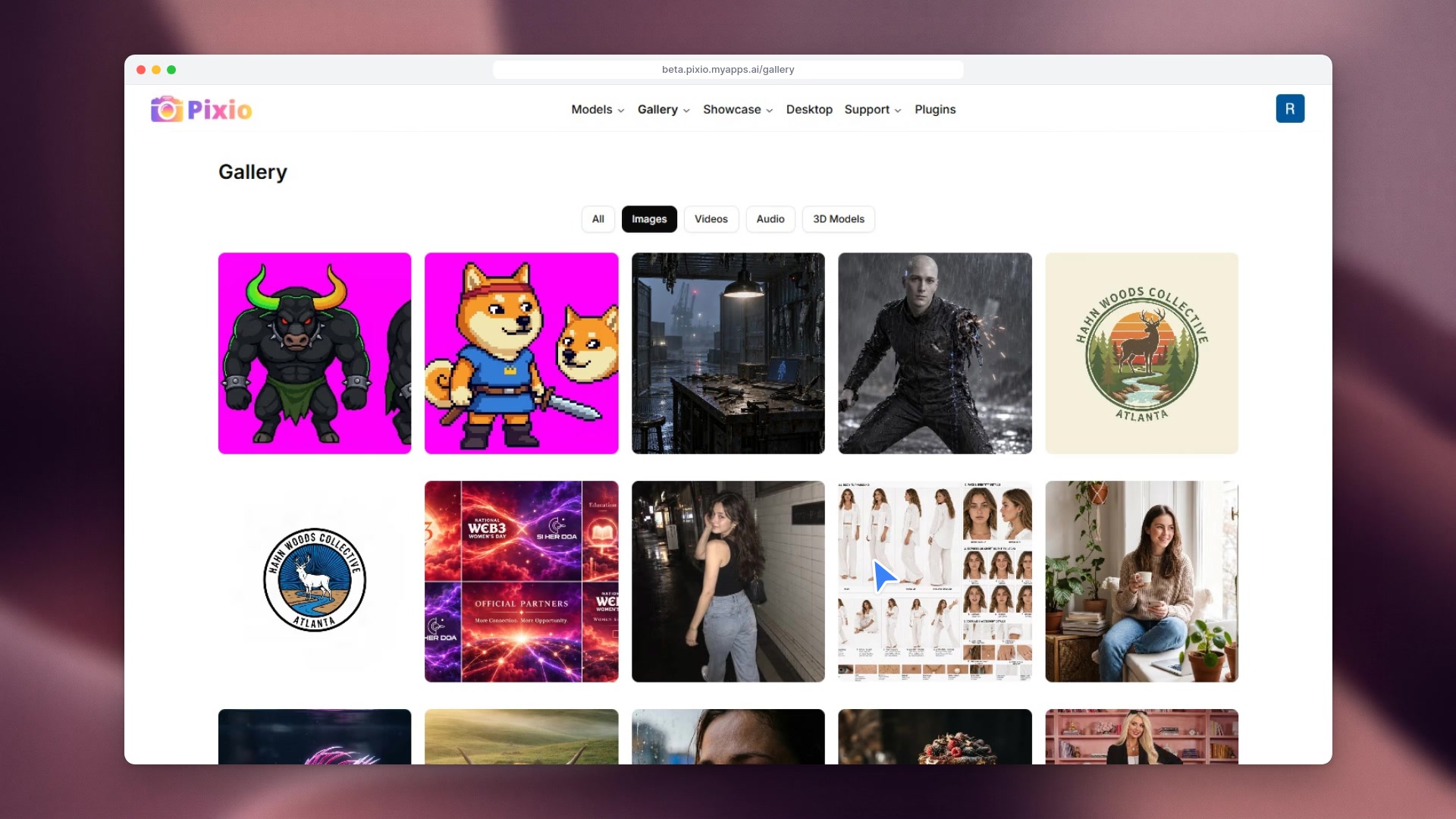 1:09Lesson 251:09The public galleryBrowse work people made with Pixio, see which model made each piece, and reopen your own results in Generate to tweak and run again.Watch lesson
 1:06Lesson 261:06The Prompts libraryStart from a curated template, turn your idea into a full detailed prompt, save it to your library, and paste it into any model in Generate.Watch lesson
Module 5
Account and integrations
Your settings, plus connecting your own apps and coding agents.
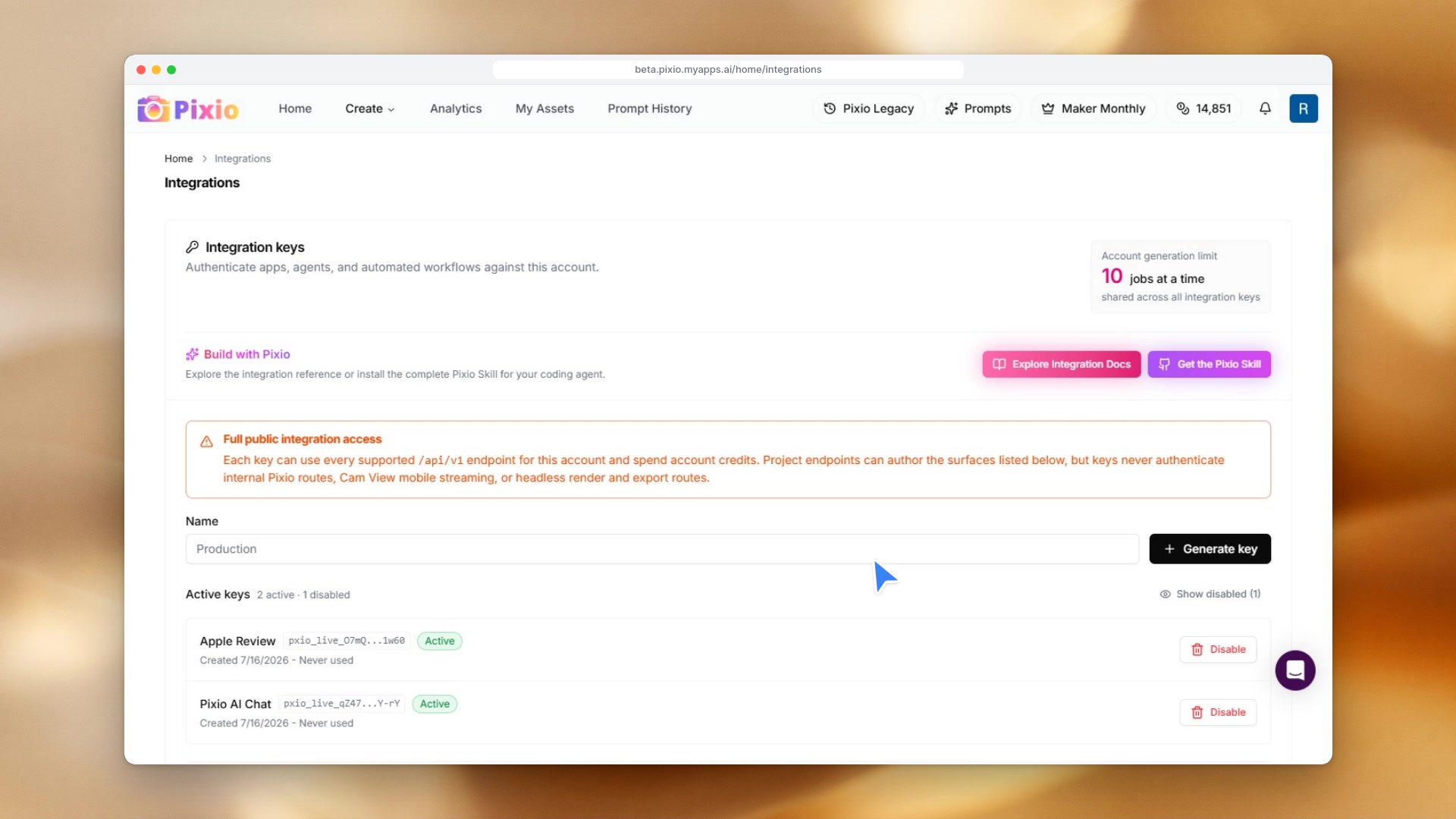 0:56Lesson 270:56Integrations and API keysSee your account's job limit, open the integration docs, install the Pixio Skill, and create, name and disable API keys for your apps and agents.Watch lesson
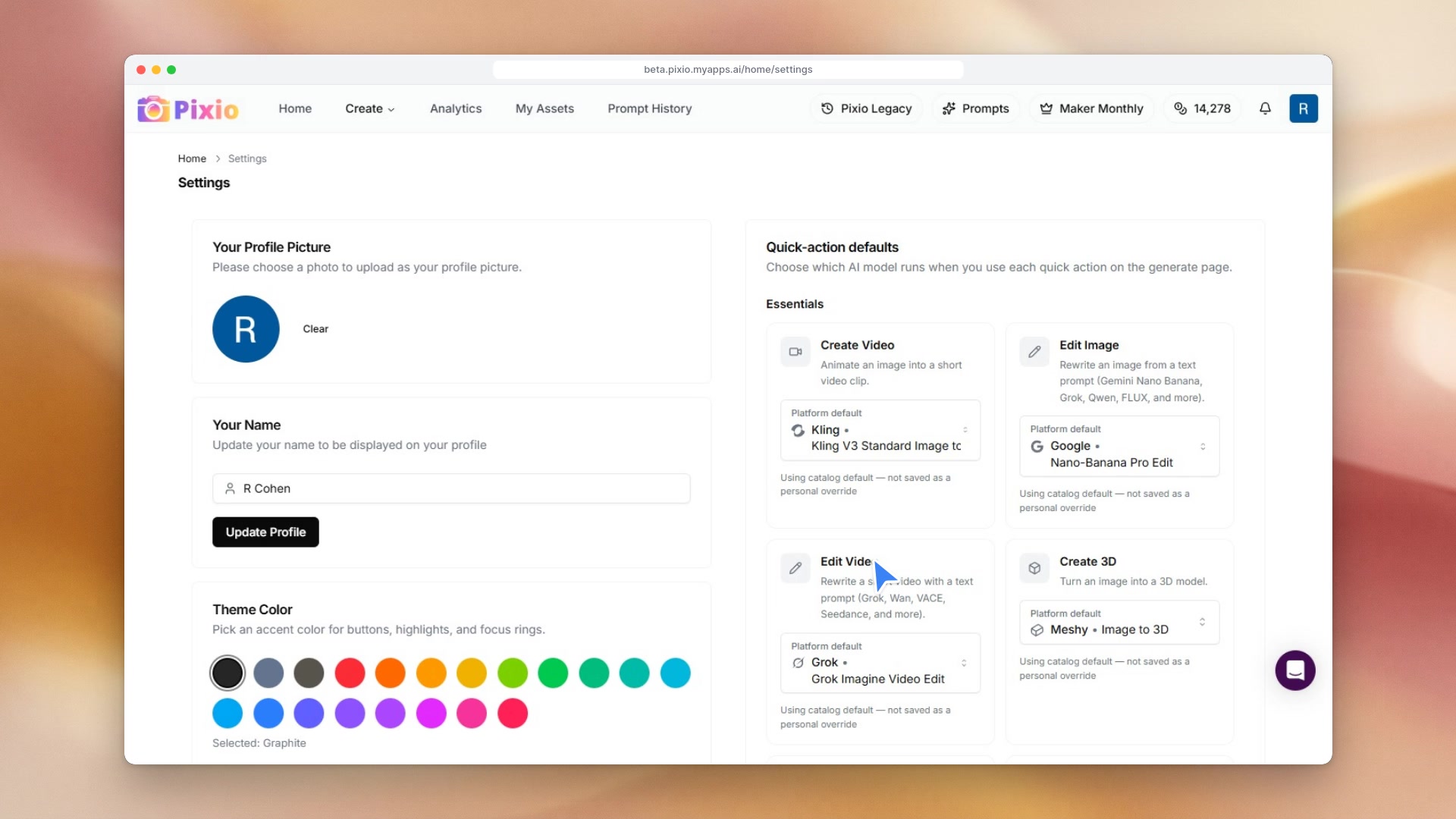 1:07Lesson 281:07SettingsMake Pixio your own: update your profile, pick a theme color, and choose which model runs for each quick action.Watch lesson
Module 6
Credits
Know what you have, where it went and what your plan covers.
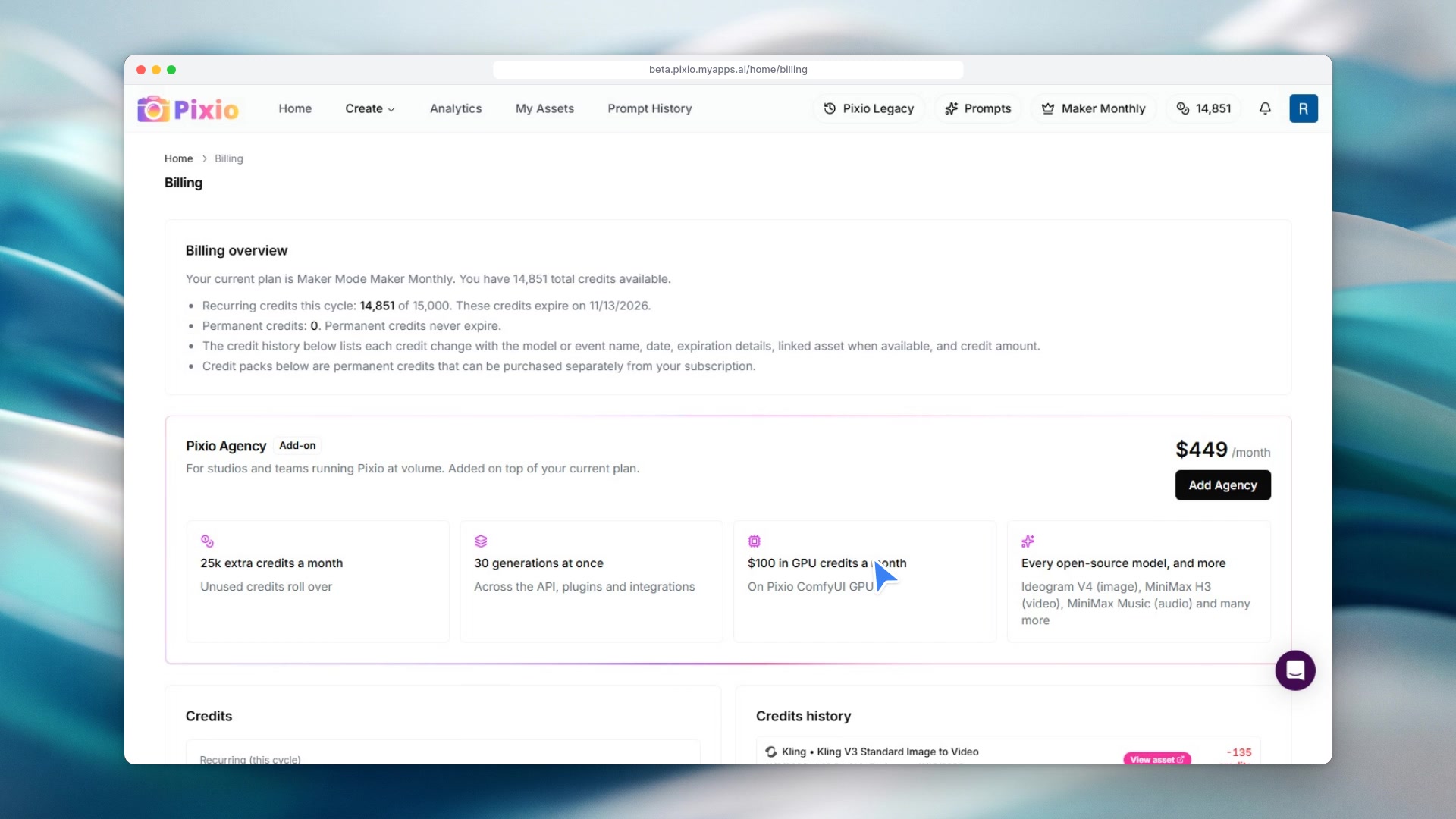 0:55Lesson 290:55Seeing your creditsRead your balance, tell recurring credits from permanent ones, follow every charge in your credit history, top up with credit packs, and see usage in Analytics.Watch lesson
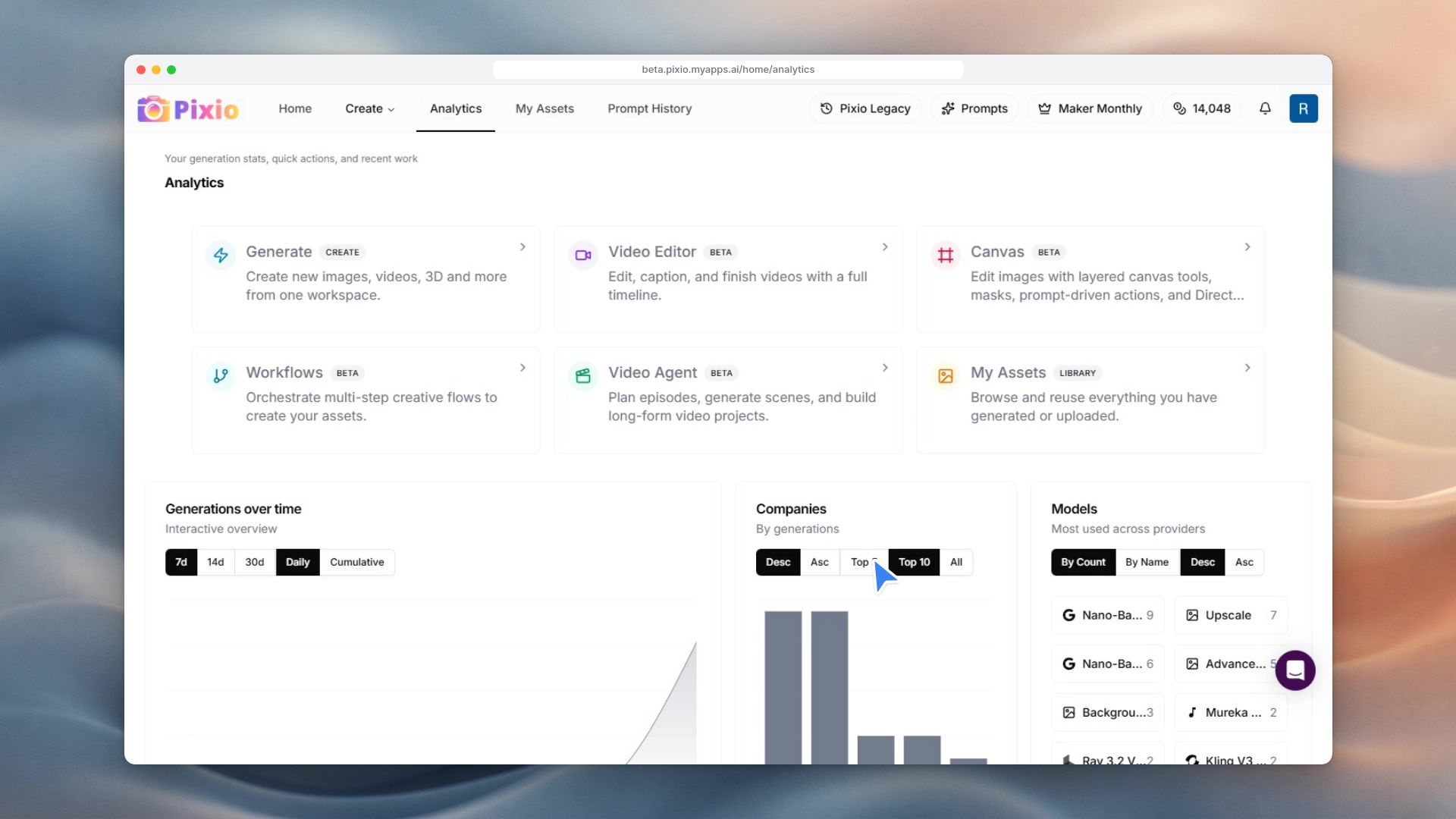 1:07Lesson 301:07AnalyticsYour stats in one place: quick actions, generations over time, the companies and models you use most, and your recent work.Watch lesson
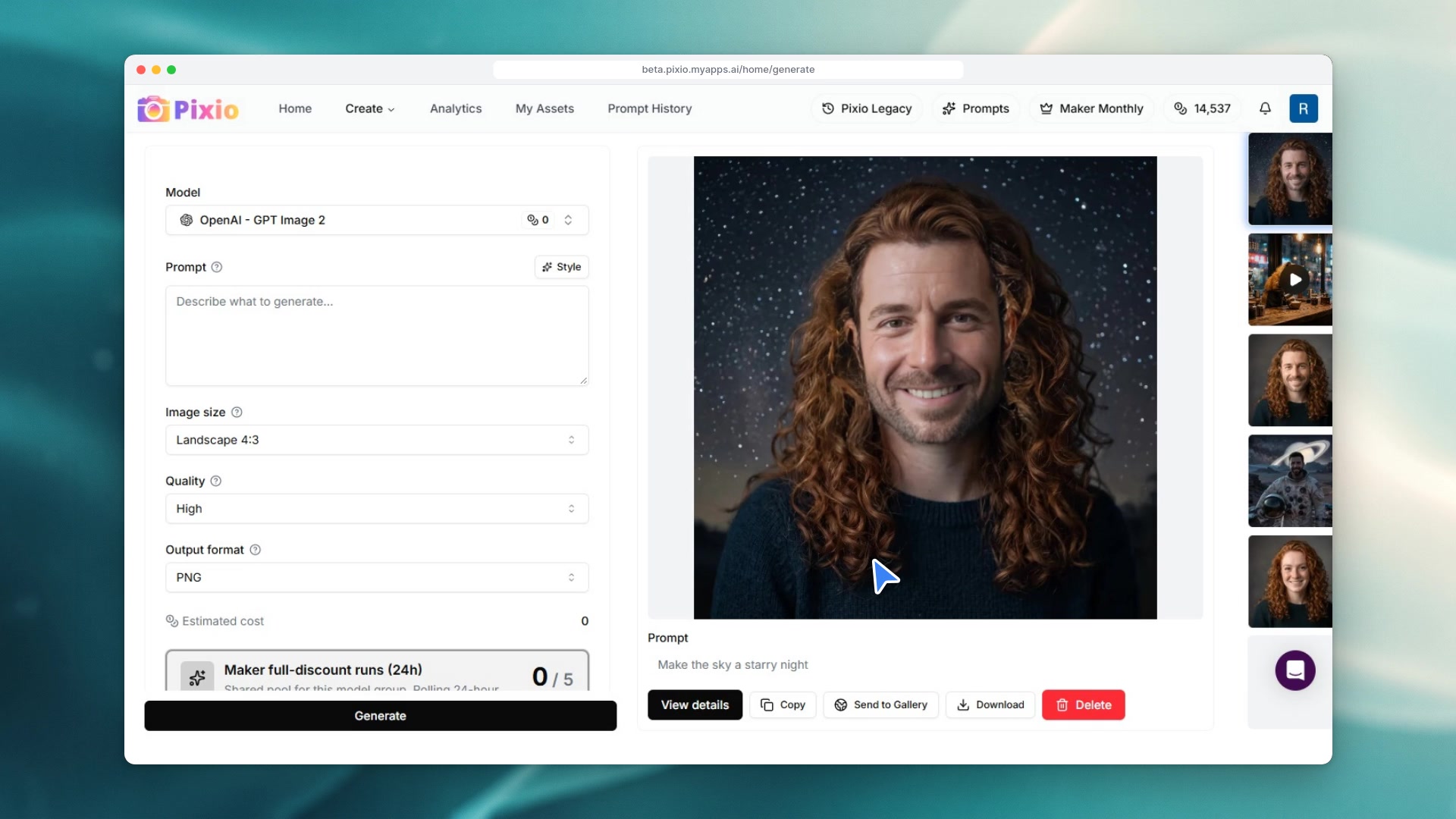 1:15Lesson 311:15The Maker planSee what the Maker plan covers: the Maker filter in the model picker, per-model run allowances, zero-credit estimates, the shared run meter and your plan details in Billing.Watch lesson
Module 7
Pixio Desktop
The desktop app: Copilot, Video Studio, Canvas, Workflows and your library.
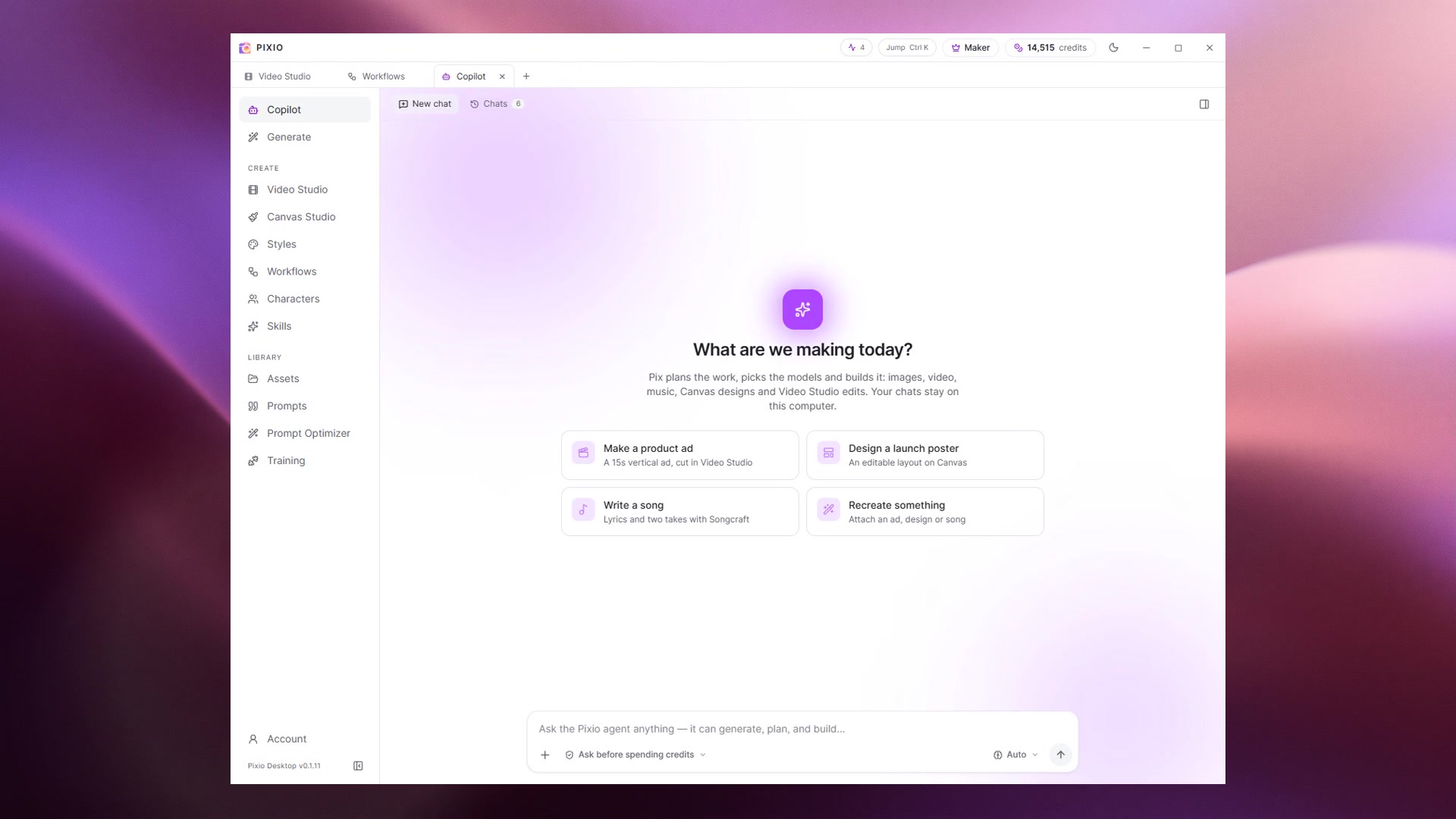 0:57Lesson 320:57Pixio Desktop tourAll of Pixio in its own app: the sidebar, tabs, Jump, and Copilot making an image after you approve the cost.Watch lesson
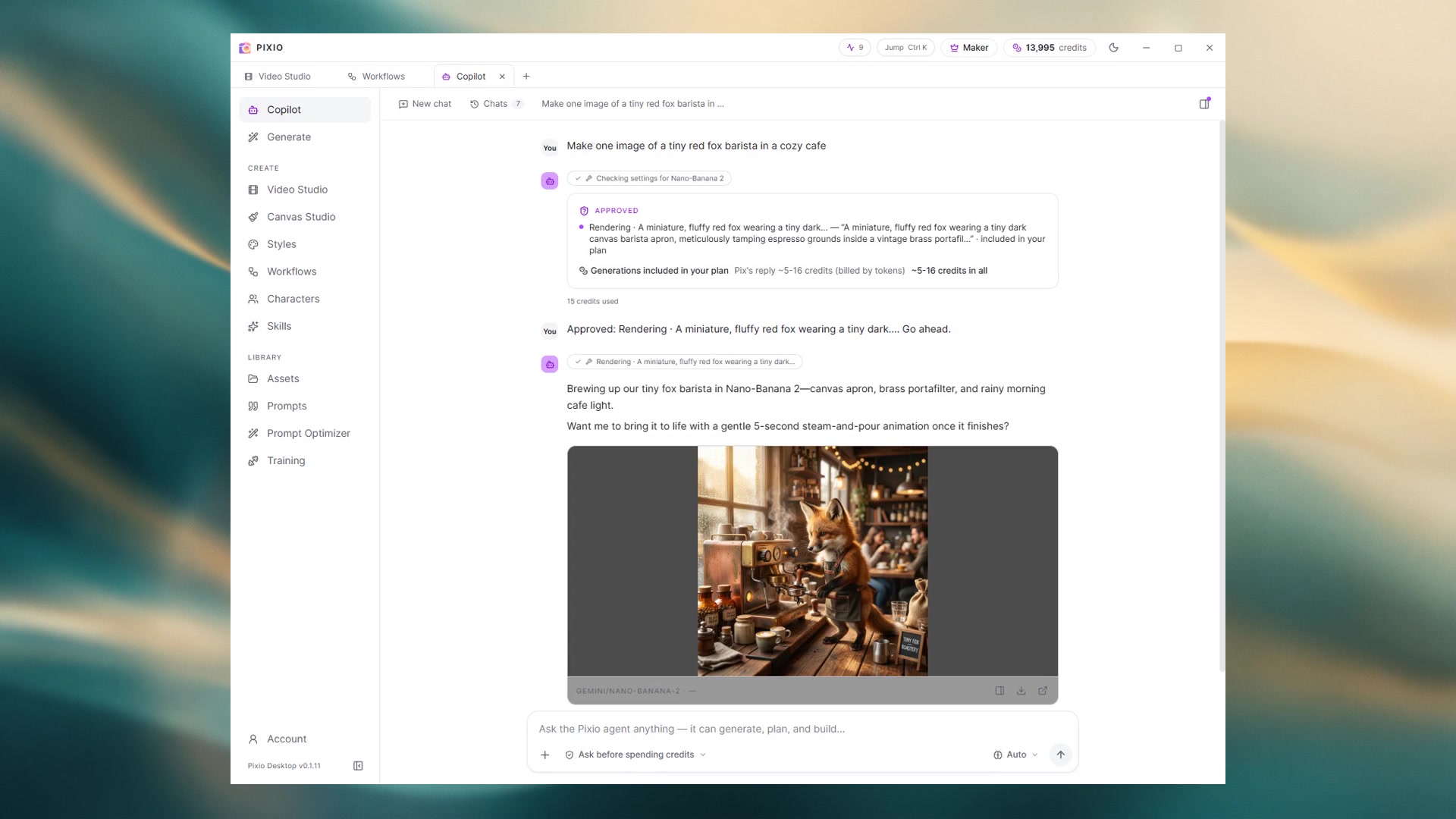 0:50Lesson 330:50Generate on desktopPick a model, write a prompt, set size and takes, check the cost and generate, then copy, download or reuse the result.Watch lesson
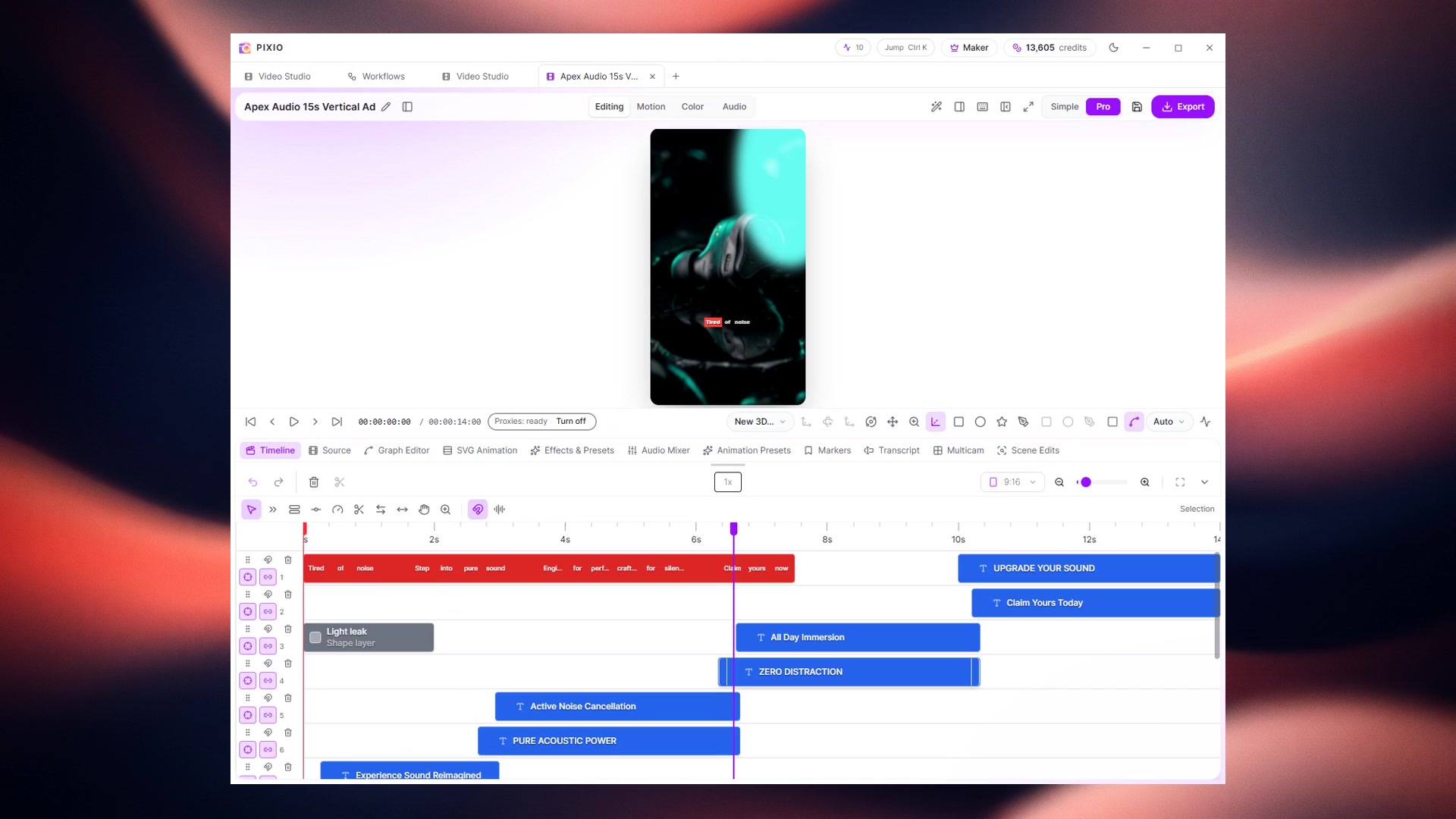 1:00Lesson 341:00Video StudioA tour of the timeline editor: preview, tracks for captions, titles, clips, voiceover and music, workspaces, Pix Agent and Export.Watch lesson
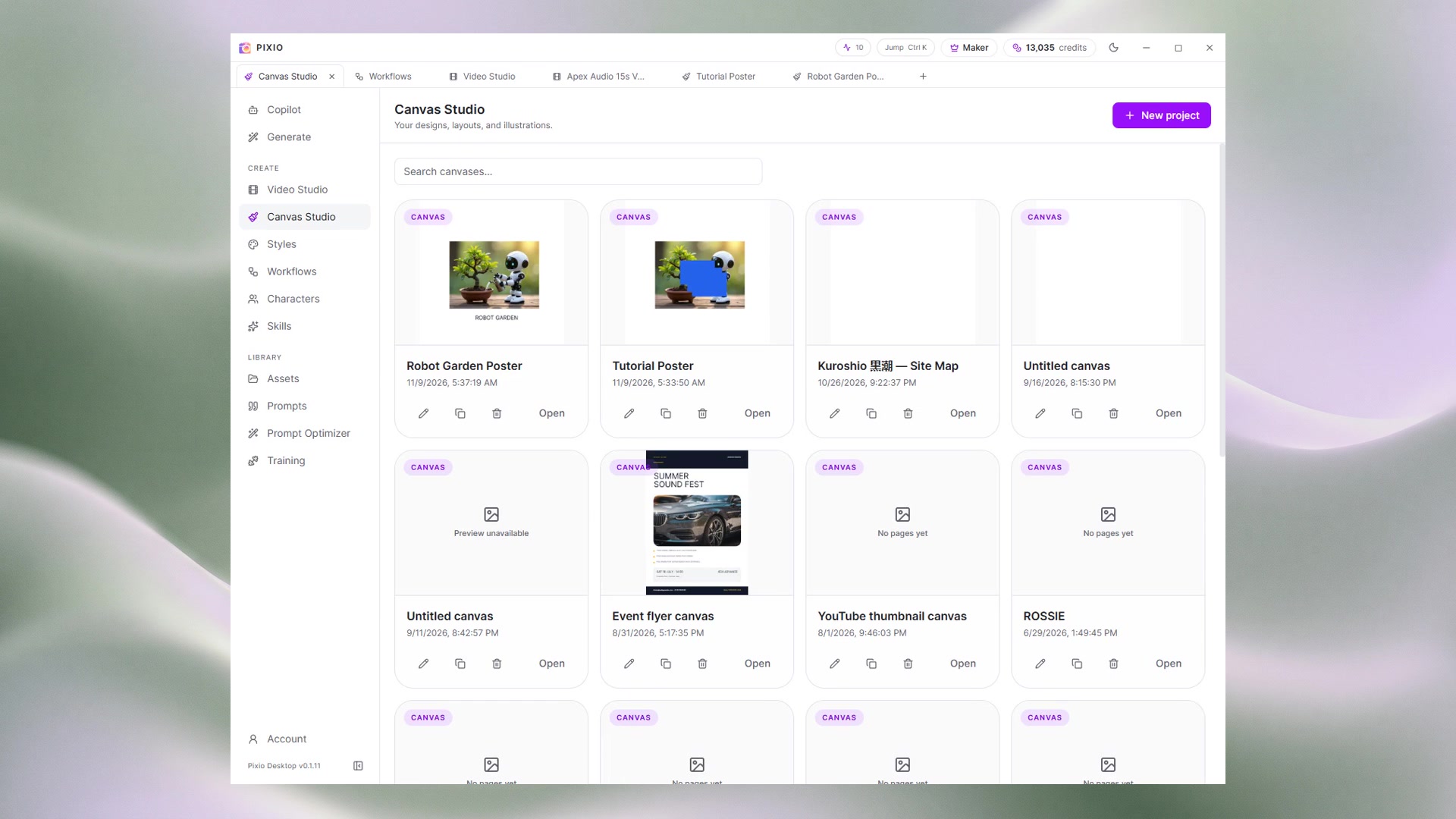 0:58Lesson 350:58Canvas StudioDesign posters and layouts: start a canvas, drop in generated images, edit them with AI, add type and shapes, and manage layers.Watch lesson
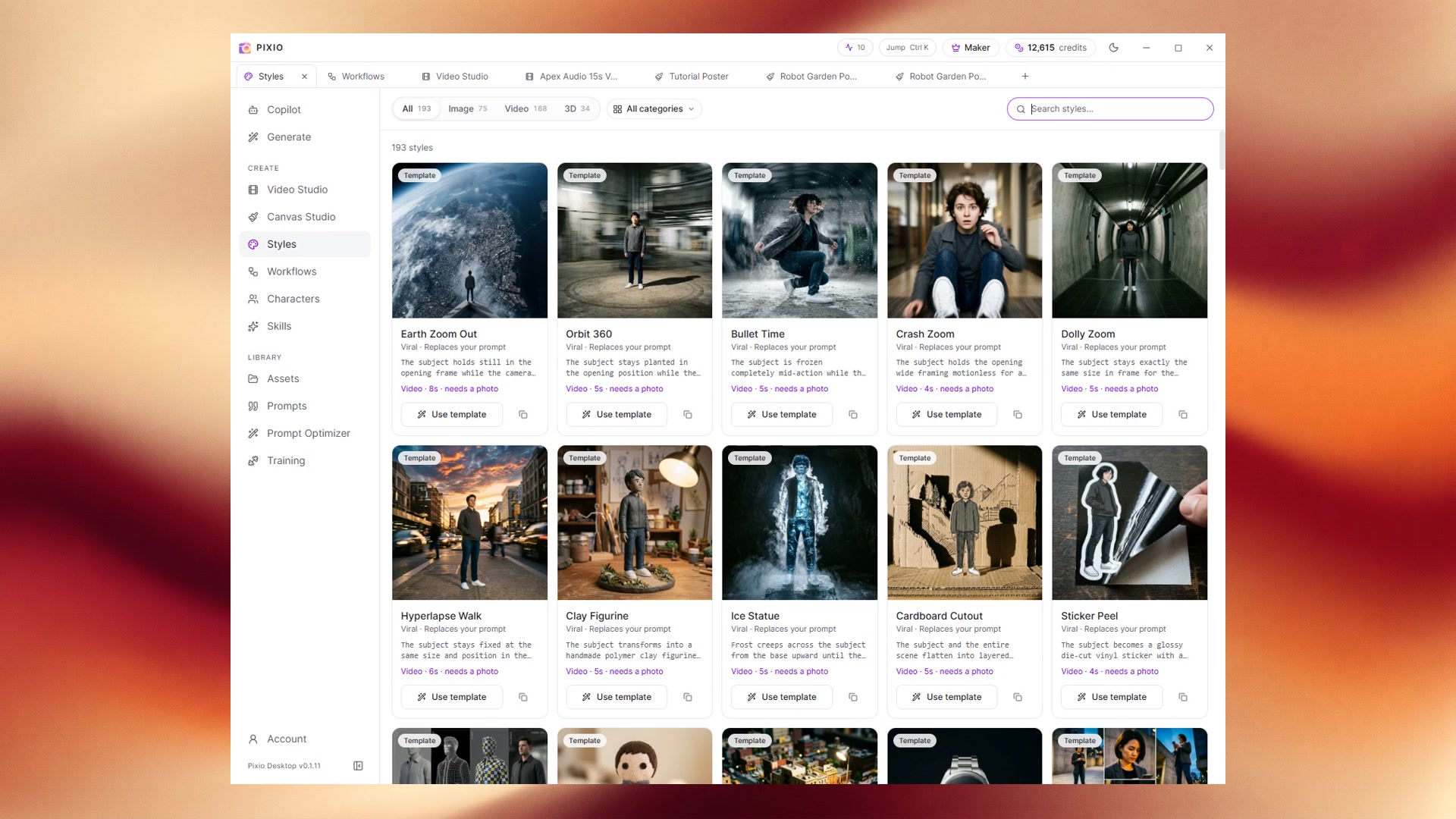 0:50Lesson 360:50StylesBrowse ready-made looks by type and category, read what each adds, and apply one to your prompt in Generate.Watch lesson
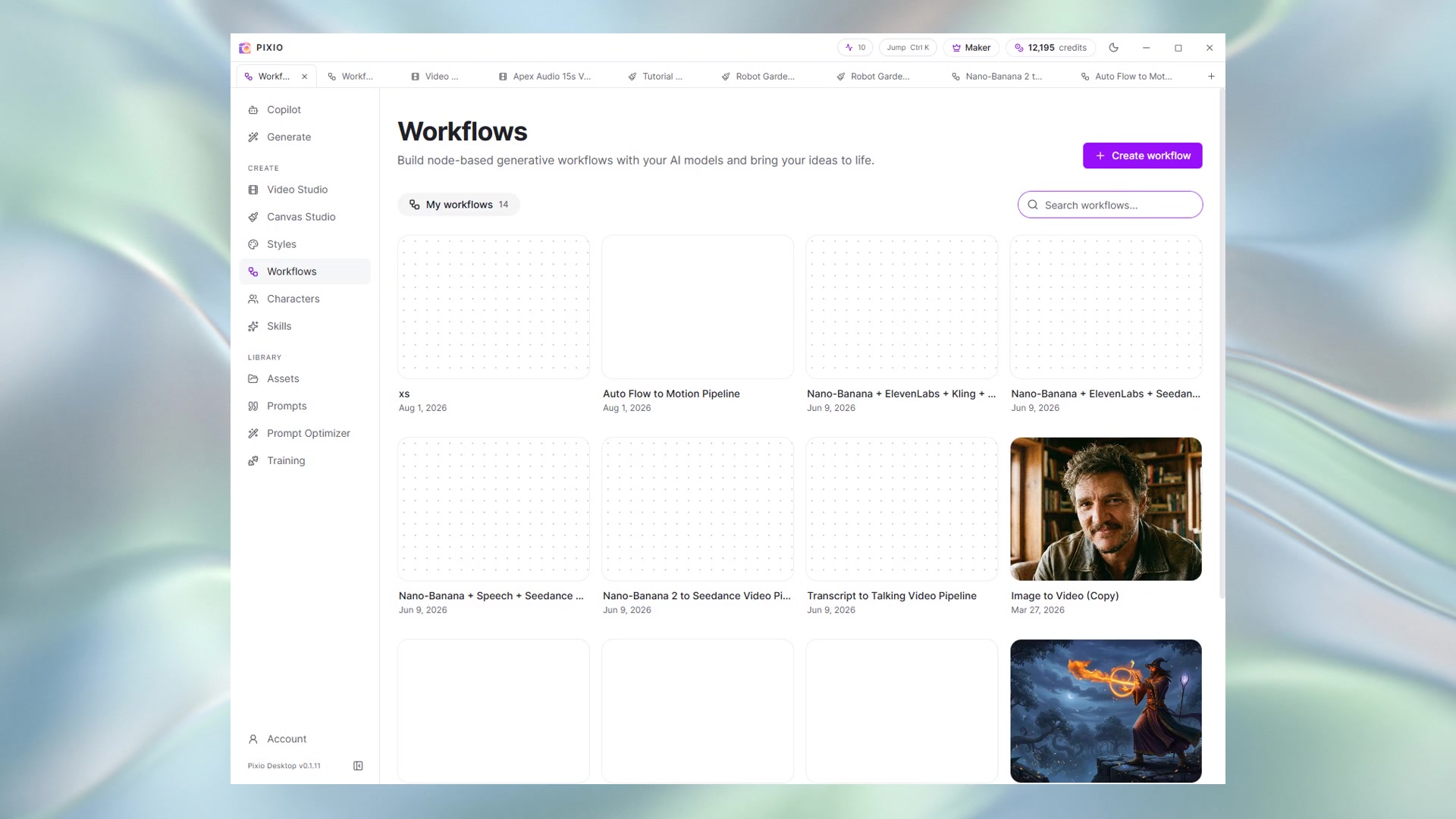 0:51Lesson 370:51WorkflowsChain models into a reusable pipeline: nodes, connections, settings and cost, the Workflow Agent, and running the whole chain.Watch lesson
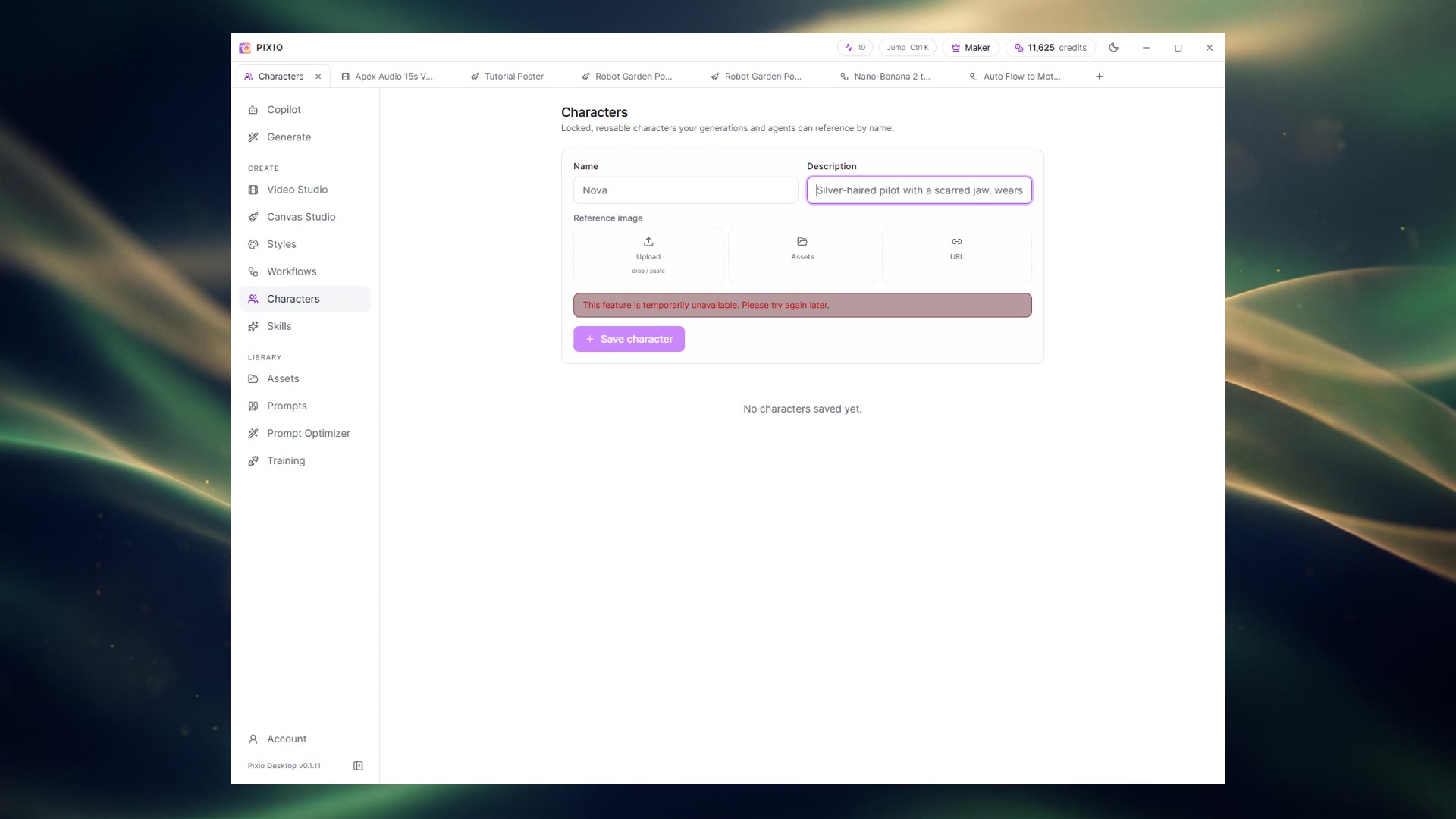 0:53Lesson 380:53CharactersSet up a reusable character with a name, a description and a reference image, then keep it consistent in Copilot chats.Watch lesson
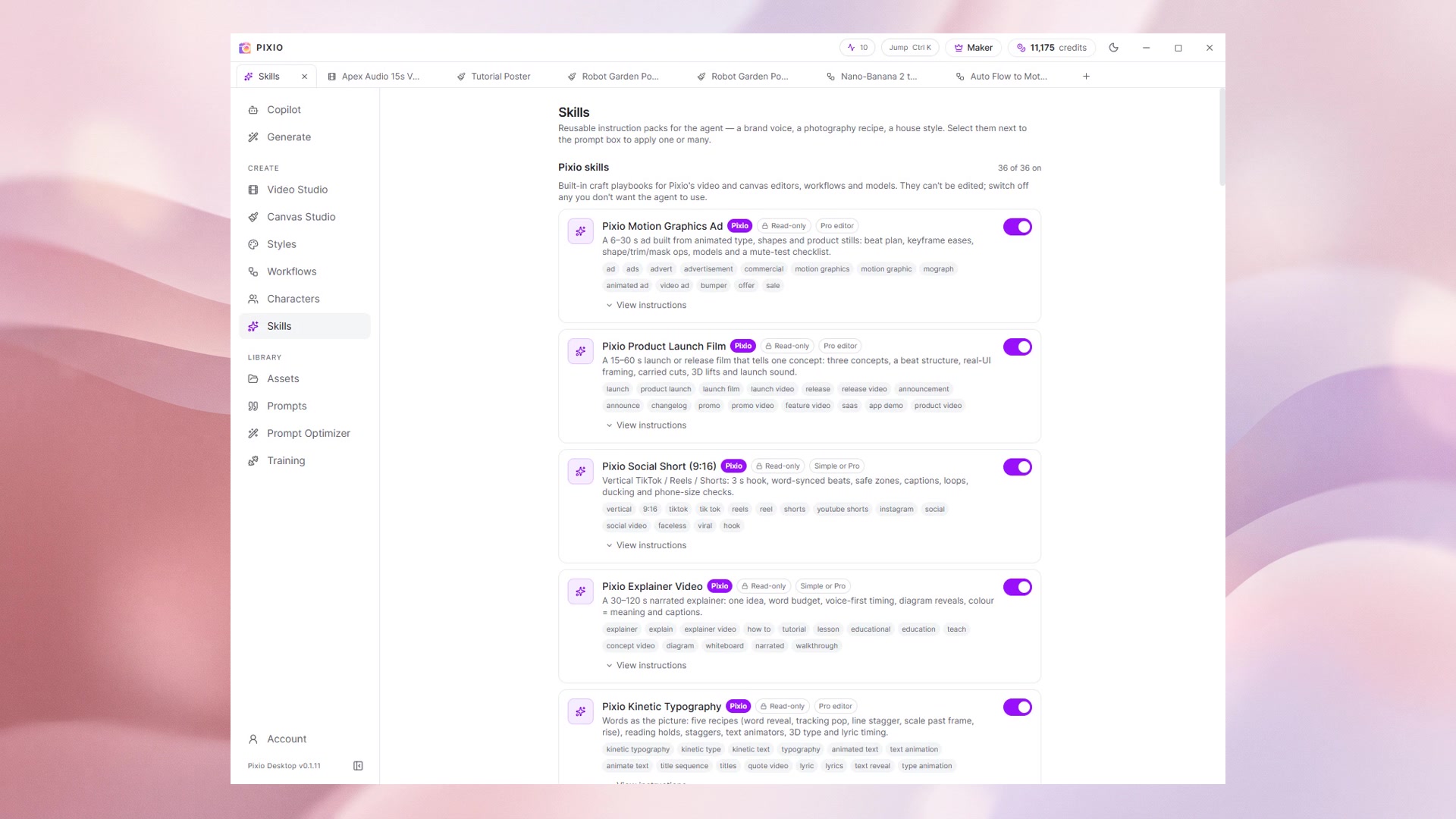 0:58Lesson 390:58SkillsInstruction packs that teach the agent a craft: browse the built-in playbooks, read their instructions, and attach one to a Copilot chat.Watch lesson
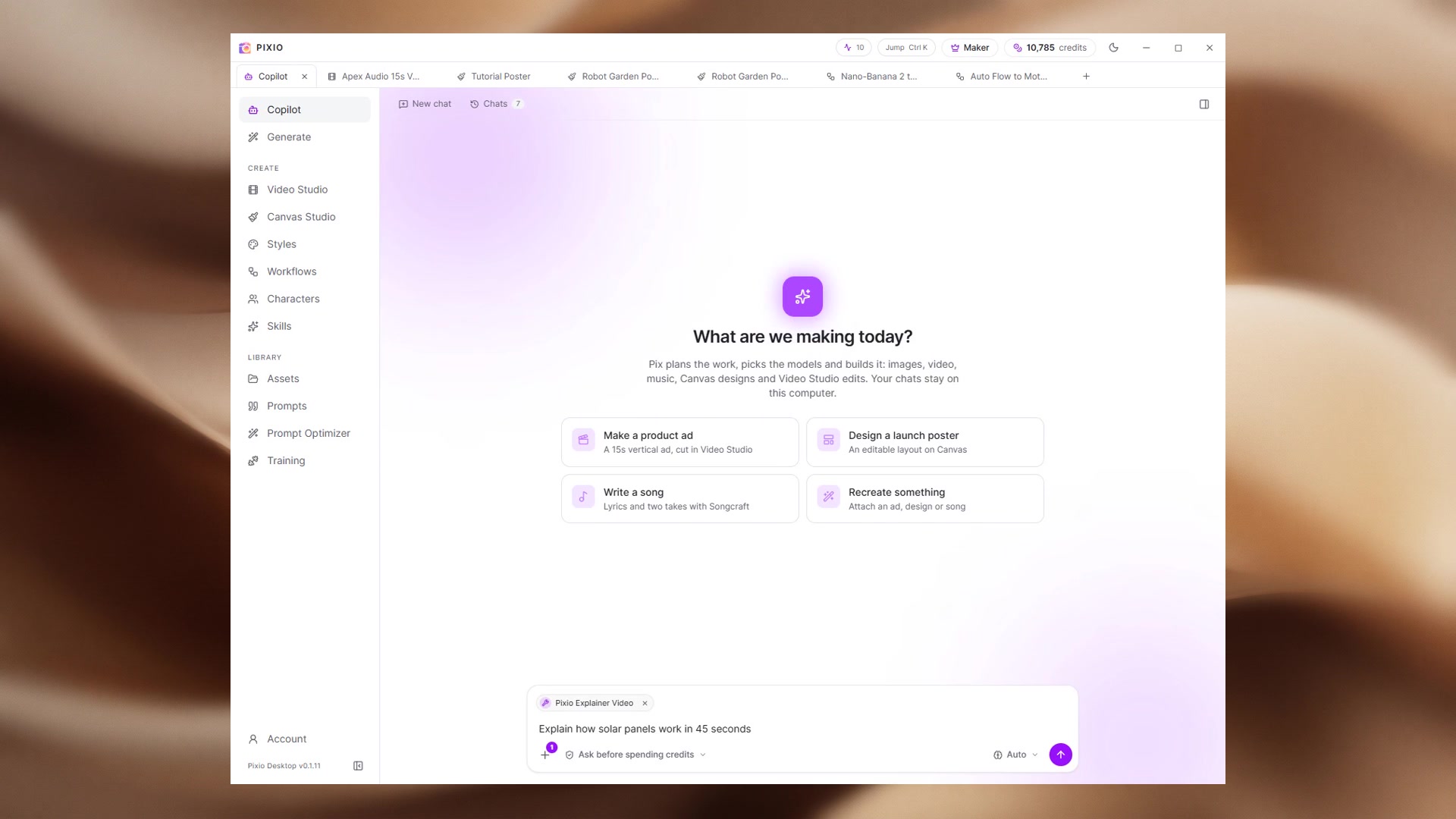 0:47Lesson 400:47Assets and PromptsYour library on desktop: collections, filters, search, sort, uploads and imports in Assets, then your prompt history and saved prompts.Watch lesson
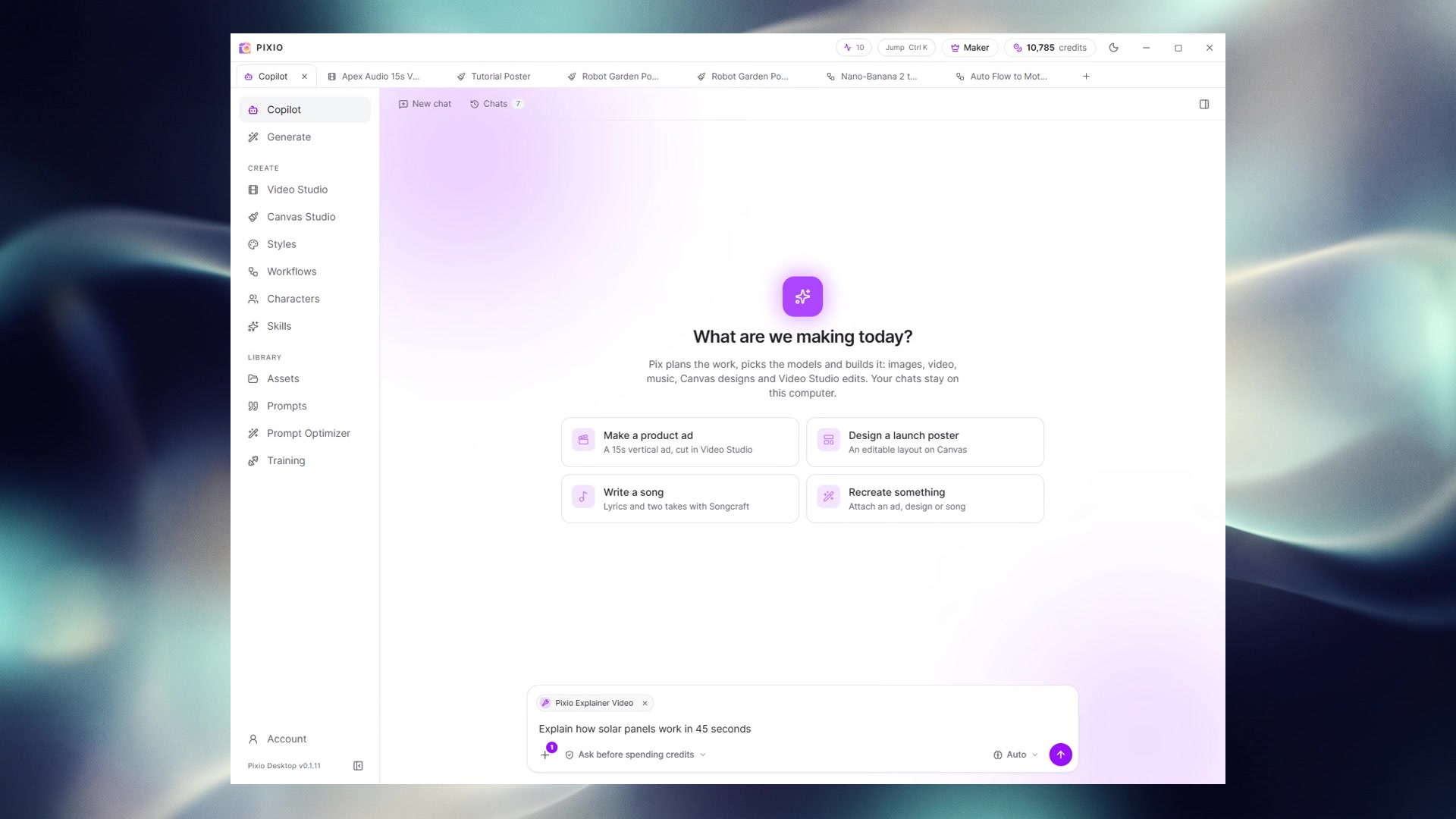 0:54Lesson 410:54Prompt OptimizerTurn a rough idea into a detailed prompt, then copy it, save it, regenerate it or send it straight to Generate.Watch lesson
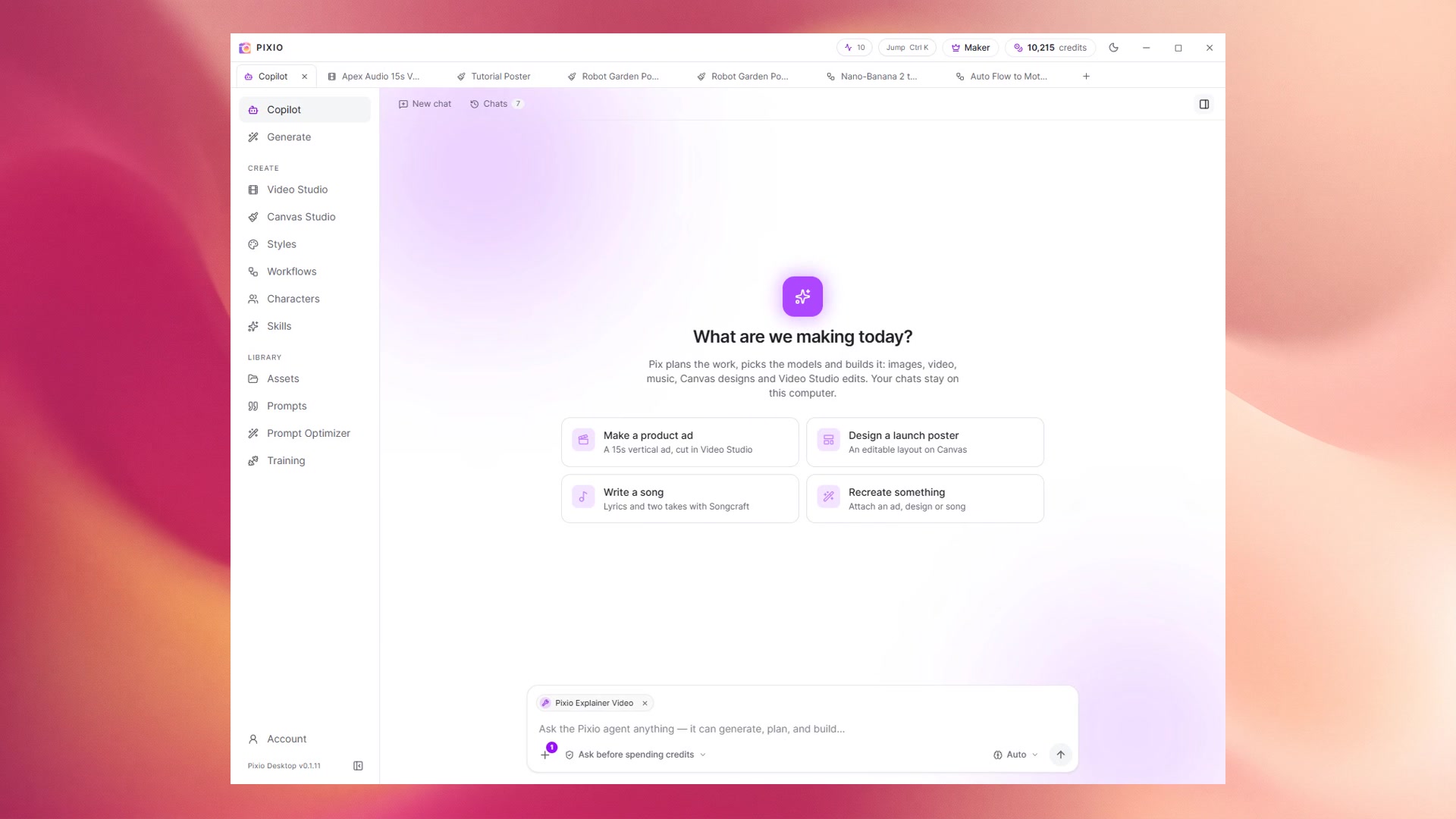 0:57Lesson 420:57Copilot in depthGo deeper with Copilot: chat history, the preview panel, permission modes, thinking level, attachments and opening projects in the editor.Watch lesson