
June 2026: Ideogram V4 is live on Pixio · Best-in-class text rendering · Photorealistic 2K output · Trained natively on JSON scene structure · Five generation modes available now
Why Ideogram V4 Thinks Differently
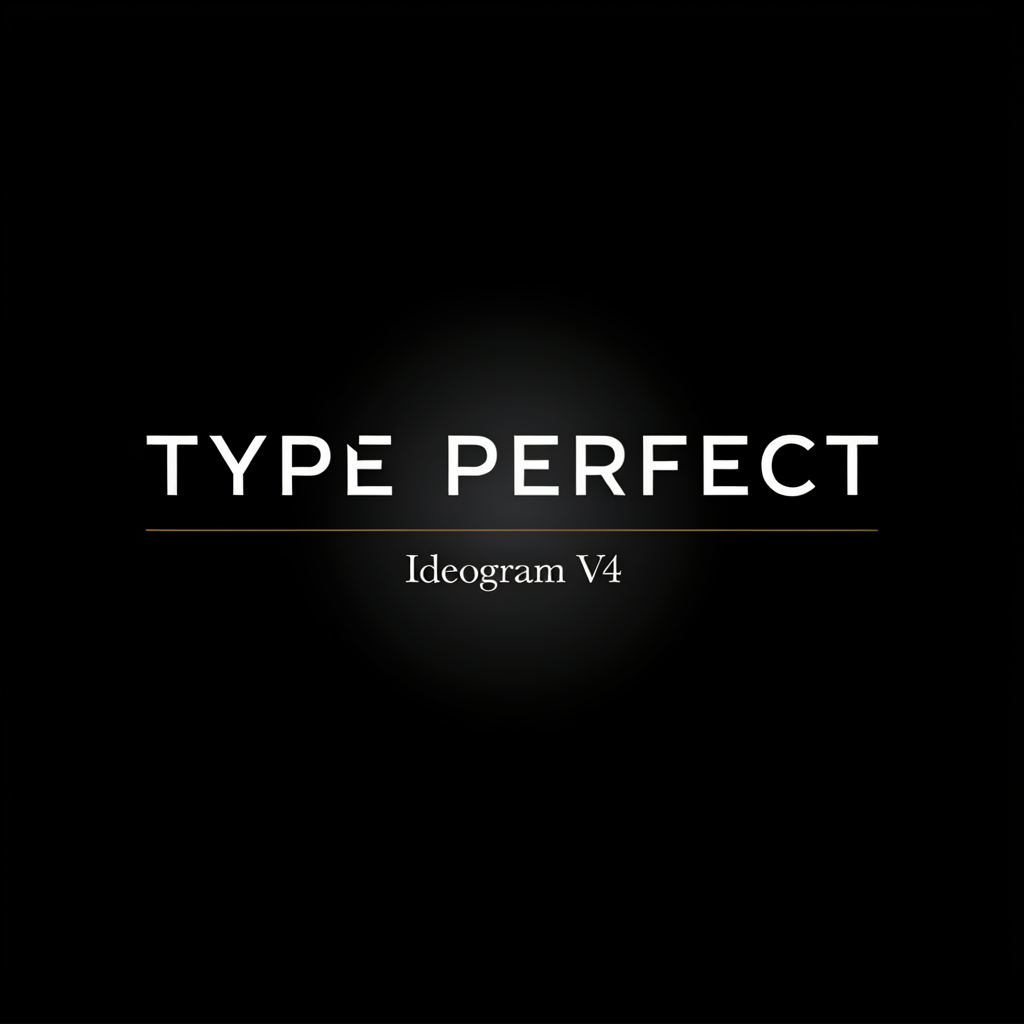
Every other image model treats text as texture. Letters are painted stroke by stroke like any other visual element, which is why they smear, invent characters, and misspell words that aren't even close to what you wrote.
Ideogram V4 was built on a completely different foundation. Ideogram's team trained it using a describe-to-structure-to-recreate loop: the model first reads a scene as structured data — backgrounds, text regions with positions and styles, objects with spatial relationships — then learns to rebuild images from that structured representation. The model literally thinks in scene structure before it generates a single pixel.
What that means for you: when you give V4 a well-structured prompt — or even a JSON-formatted one — you are speaking the model's native language. It doesn't just follow your instructions; it maps them onto the same internal scene representation it was trained on. That's why the results are sharp, accurate, and compositionally precise in a way other models simply aren't.
The Five Ideogram V4 Modes on Pixio
Pixio gives you access to the full Ideogram V4 family. Each mode is the right tool for a different job:
| Mode | What it does |
|---|---|
| Generate (V4) | Text-to-image from a prompt |
| Remix (V4) | Reimagine an existing image guided by a new prompt |
| Image to Image | Restyle or rework an image while preserving core structure |
| Tiling | Seamless, edge-matched repeating patterns |
| Ideogram V4 (bundled) | High-fidelity generation with extended quality preset |
Quick pick: Use Generate (V4) for originals. Use Remix or Image to Image to evolve an existing piece. Use Tiling for textures and patterns that repeat seamlessly.
JSON Prompting: Speaking the Model's Native Language
This is the most powerful technique available in Ideogram V4 — and the most overlooked. Because V4 was trained on structured JSON scene descriptions, it responds with exceptional precision when you write your prompt in a JSON-like format.
Instead of writing one long paragraph and hoping the model parses it correctly, you give each element its own explicit key. The model maps your keys directly onto its internal scene representation. In Pixio's Generate Studio, you simply paste the entire JSON block straight into the prompt field — no special formatting required.
A Basic JSON Prompt
Here is a complete JSON prompt for a product launch poster. Paste the whole object into the prompt field:
{
  "image_type": "product launch poster, square format",
  "subject": "matte black wireless earbuds in a sleek open case, centered on a white marble surface",
  "headline": "\"PURE SOUND\"",
  "subhead": "\"Now available\"",
  "style": "minimalist product photography, soft studio lighting from above-left",
  "background": "clean white marble, faint veining, no clutter",
  "palette": "deep black, warm off-white, brushed gold accents",
  "composition": "headline centered at top, product in center, subhead at bottom center",
  "mood": "premium, refined, quiet confidence",
  "exclude": "watermarks, extra text, busy backgrounds, reflections that obscure detail"
}
Why JSON works: Each key maps directly to a semantic layer the model tracks internally. headline becomes a text region. composition maps to spatial layout. exclude handles what you don't want far more reliably than negative phrasing buried in prose.
JSON Prompt Fields That Matter Most
The model responds especially well to these keys:
image_type — Establish the visual form first. "editorial poster," "product photography," "flat vector logo," "watercolor illustration." This sets the entire rendering mode.
subject — The main focus. Be specific about materials, shape, color, texture. The more concrete, the more accurate.
headline / subhead / label — Always wrap literal text in double quotes inside the value: "\"ROAST & CO\"". The double quotes signal to V4 that these words must appear exactly in the image.
composition — Describe spatial placement explicitly. "headline top-center, product centered, subhead at bottom-left." V4 was trained on bounding box data, so positional language maps cleanly to its internal layout representation.
palette — Use descriptive color names, not hex codes. "espresso brown," "slate grey," "warm cream," "cobalt blue." Ideogram understands named colors and translates them naturally. Hex codes are not supported in prompts.
style — Name the rendering mode precisely. "photorealistic," "flat vector illustration," "3D render," "ink sketch," "vintage screenprint." Avoid vague terms like "artistic" or "nice."
exclude — Ideogram struggles with negation in prose ("no watermark" often fails). Placing exclusions in a dedicated key works far more reliably.
A More Complex JSON Prompt: Multi-Element Layout
For layouts with several distinct elements, JSON lets you specify each one with surgical precision:
{
  "image_type": "vintage travel poster, portrait orientation",
  "location": "Kyoto, Japan",
  "primary_text": "\"VISIT KYOTO\"",
  "secondary_text": "\"Where tradition meets eternity\"",
  "dominant_image": "Mt. Fuji silhouette at dusk, soft pink and gold sky, traditional pagoda in the foreground",
  "decorative_elements": "cherry blossom branches framing the top corners, subtle Japanese wave pattern along the bottom border",
  "style": "retro screenprint illustration, flat color areas, bold outlines",
  "palette": "vermillion red, gold, deep indigo, cream",
  "composition": "primary text at top in large display type, landscape illustration fills center two-thirds, secondary text at bottom in smaller elegant lettering",
  "typography_style": "bold retro condensed sans-serif for headline, delicate serif for secondary text",
  "mood": "nostalgic, adventurous, timeless"
}
Tip: You don't need to flatten JSON to a paragraph first. V4 reads the structured format directly — just paste it into the prompt field in Generate Studio and hit generate.
The Classic Structured Prompt Formula
For users who prefer plain prose, Ideogram's own recommended structure maps directly onto the same layers as JSON — just written as sentences. Use this order:
[Image summary] + [Subject details] + [Text to render] + [Secondary elements] + [Setting & background] + [Lighting & atmosphere] + [Framing & composition] + [Style enhancers]
A well-assembled example:
A product photo of a men's cologne bottle named "Nightlife" in a sleek studio
setup. The bottle is tall and rectangular with dark glass, a matte black cap,
and silver lettering reading "Nightlife." It stands upright with a faint
reflection on the surface below. A wristwatch and sunglasses sit nearby. The
scene is set on a smooth black surface with blurred city lights in the
background. Lighting is cool and moody with soft blue highlights and deep
shadows. The bottle is centered at eye level. Shallow depth of field gives
the image a polished commercial look.
Structure rules that change the result
Lead with what matters most. Ideogram gives more weight to the beginning of a prompt. Put your subject and its text in the first sentence, not buried at the end.
Quote literal text explicitly. Any words you want rendered exactly as written go in double quotes: "LAUNCH DAY", "Roast & Co.", "Fresh Daily". Without quotes, the model treats those words as descriptors, not as text to render.
Break long text into labeled chunks. Instead of "a sign with a lot of text," write: "a restaurant sign with the title 'La Pasta' at the top and the phrase 'Fresh handmade Italian dishes' written below in smaller type."
Under 150 words. Ideogram processes up to approximately 150–160 words reliably. Beyond that, later details may be ignored or blended incorrectly. Make every word count.
Use relative size terms. "A huge headline," "a smaller subhead," "a tiny footnote" — Ideogram translates scale language directly into visual hierarchy.
Mastering Text Rendering: V4's Superpower
Text in images is V4's defining capability. Here is exactly how to get clean, accurate results:
Quote every rendered word Wrap any text that should appear in the image in double quotes. "OPEN DAILY" is a rendering instruction. OPEN DAILY without quotes is art direction the model may interpret loosely.
Keep it short Short phrases render cleanly: 1–5 words. Longer text (full sentences, paragraphs) becomes increasingly error-prone. Generate the visual, then add fine print in a design tool.
Name the type style "Heavy condensed sans-serif," "elegant thin-stroke serif," "hand-lettered script," "retro bubble letters." Type style language steers the letterforms meaningfully.
Place text early in the prompt Text mentioned in the first sentence gets more compositional weight than text mentioned at the end. In a JSON prompt, put headline before decorative_elements.
Direct placement "Headline centered at the top," "brand name in the lower-right corner," "label wrapping around the bottle." V4 was trained on bounding box positional data and responds well to explicit placement language.
Simplify the background Busy, highly textured backgrounds compete with text rendering. A clean or blurred background lets V4 allocate more fidelity to getting the typography right.
If a word comes out wrong: Regenerate before rewriting your whole prompt. V4's text accuracy is high but stochastic — a second generation often nails it. If it fails consistently, shorten the phrase or reposition it earlier in the prompt.
5 Real Prompts, 5 Real Outputs
Every image in this section was generated on Pixio using Ideogram V4 with the rendering speed set to Quality. The prompts are copy-paste ready — drop the JSON block straight into the prompt field in Generate Studio.
1. Typography / Logo Design
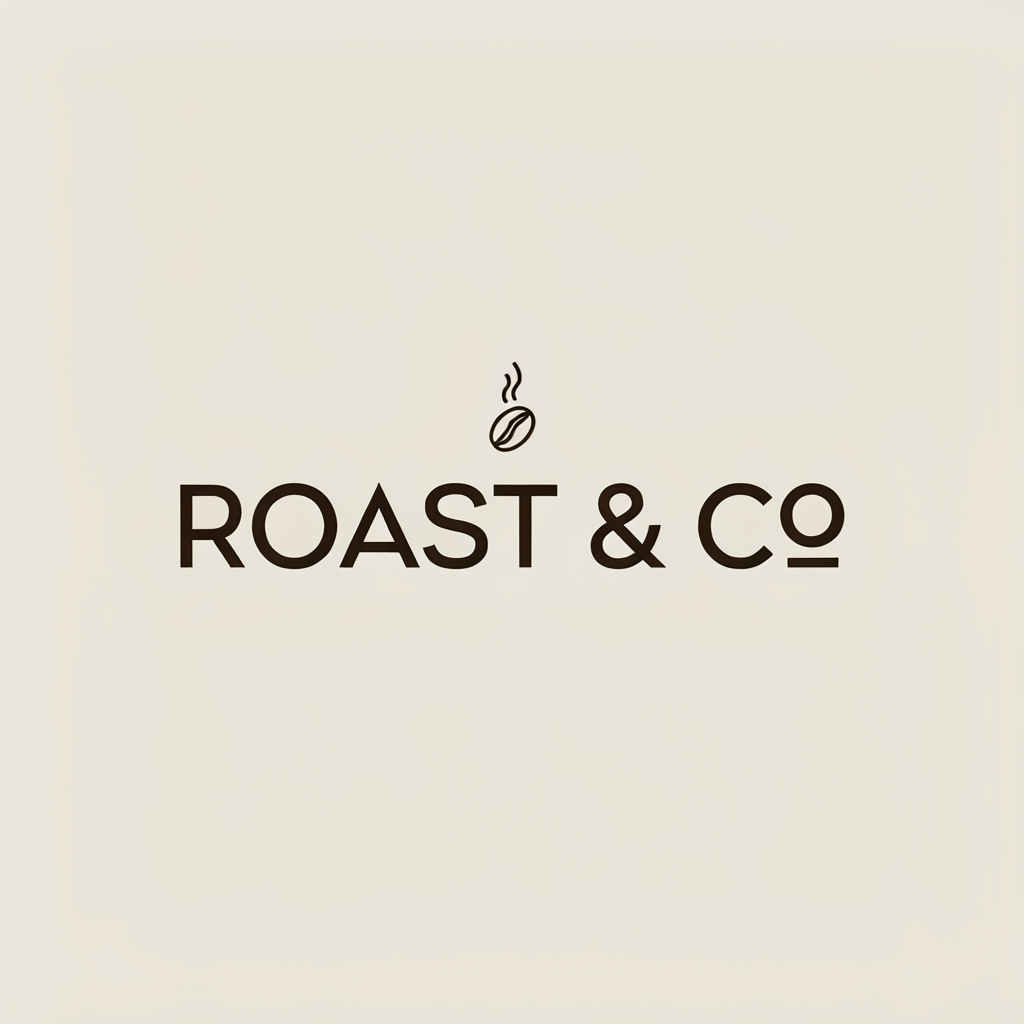
{
  "image_type": "minimalist brand logo, square format",
  "wordmark": "\"ROAST & CO\"",
  "icon": "small steaming coffee bean icon centered above the wordmark",
  "style": "clean vector illustration, geometric construction",
  "palette": "warm cream background, deep espresso brown lettering",
  "typography": "clean geometric serif for the wordmark",
  "composition": "icon top-center, wordmark below it, centered overall",
  "exclude": "clutter, extra text, watermark, complex gradients"
}
Why it works: The wordmark field with double quotes is a direct rendering instruction. The icon is described relative to the wordmark so V4 understands the spatial relationship. The palette uses descriptive names, not hex.
2. Photorealistic Scene

{
  "image_type": "photorealistic lifestyle photography, square format",
  "subject": "a cappuccino with delicate leaf latte art in a white ceramic cup on a saucer",
  "setting": "rustic wooden cafe table, a few roasted coffee beans scattered beside the cup, a folded napkin and brass spoon nearby",
  "lighting": "warm morning light streaming in from a window on the left",
  "depth_of_field": "shallow, with the cup in sharp focus and the background softly blurred",
  "palette": "warm wood browns, cream foam, soft golden highlights",
  "mood": "cozy, inviting, artisan cafe",
  "exclude": "text, watermark, hands, clutter"
}
Why it works: No text is needed — the exclude key keeps V4 from inventing any. The setting and lighting keys are separated so each gets full compositional weight, which is what produces the realistic shadows and steam.
3. Flat Vector Illustration

{
  "image_type": "flat vector illustration, widescreen 16:9",
  "scene": "a hot air balloon festival drifting over rolling green hills at sunrise",
  "focal_detail": "several colorful striped balloons in the sky, a soft sun low on the horizon",
  "caption": "\"WANDER\"",
  "caption_placement": "clean rounded sans-serif text centered along the bottom edge",
  "palette": "coral, teal, soft yellow, cream",
  "style": "clean geometric shapes, minimal detail, flat color areas",
  "mood": "calm, adventurous, optimistic"
}
Why it works: The caption gets its own key with explicit placement, so "WANDER" lands cleanly at the bottom. The tight named palette (coral, teal, soft yellow, cream) keeps the flat-vector look consistent across every shape.
4. Seamless Pattern / Tiling

Use the Tiling mode for this one — it guarantees mathematically seamless edges so the pattern repeats infinitely without visible seams.
{
  "image_type": "seamless repeating surface pattern, square tile",
  "elements": "interlocking hexagons of varied sizes with small triangles filling the gaps",
  "density": "even spacing across the tile with no large empty areas",
  "style": "flat geometric design, crisp clean edges",
  "palette": "teal, mustard yellow, terracotta, cream background",
  "intended_use": "wallpaper, fabric, packaging",
  "exclude": "drop shadows, gradients, text, visible tile edges"
}
Why it works: The intended_use key teaches V4 the context, which influences how it handles density and scale. Tiling mode plus the exclude of visible tile edges ensures a truly seamless result.
5. Social Media Asset with Overlaid Text
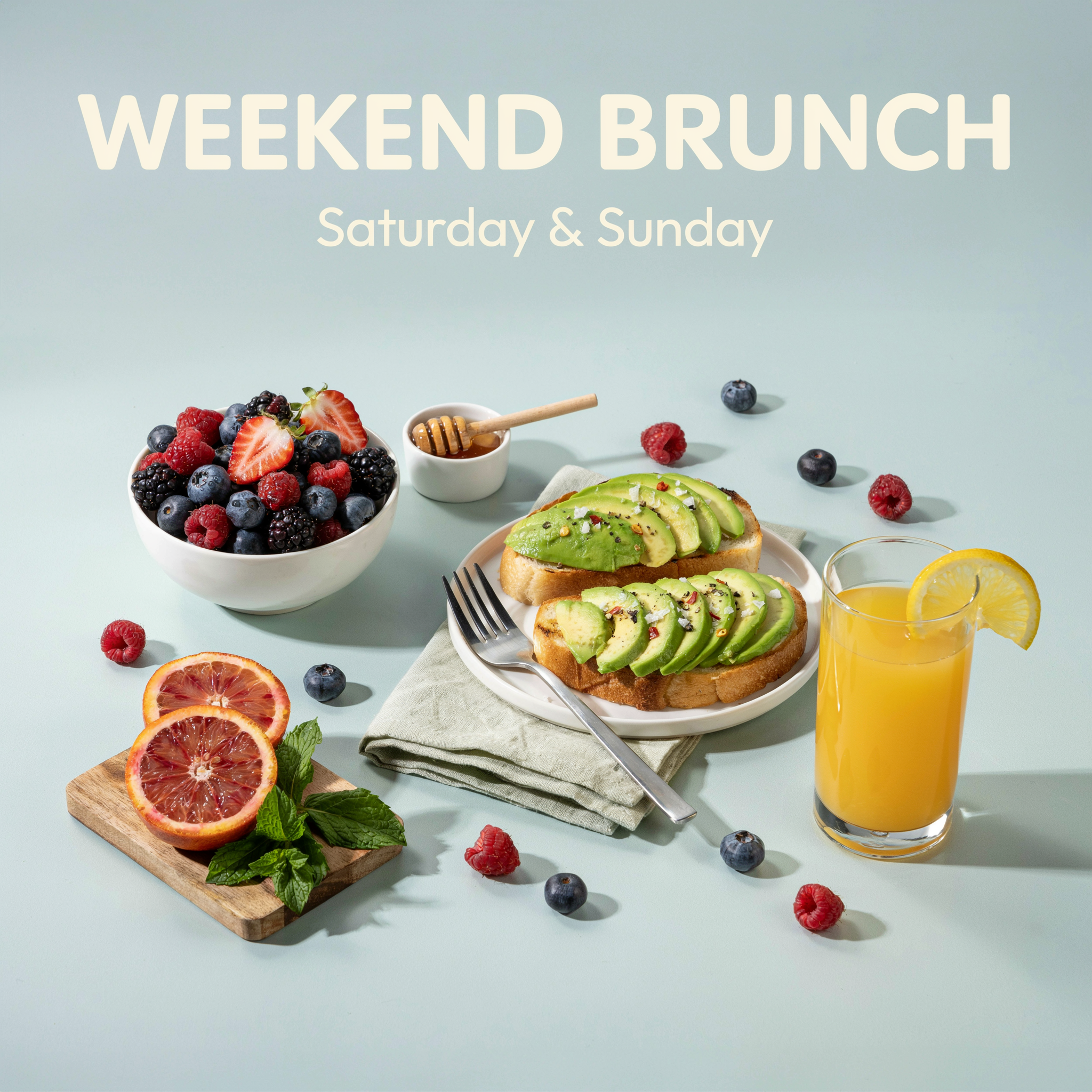
{
  "image_type": "Instagram post, square 1:1 format",
  "scene": "a bright healthy breakfast spread on a pale blue table, top-down view",
  "items": "a bowl of fresh berries, avocado toast, a glass of orange juice, blood orange halves, sprigs of mint",
  "headline": "\"WEEKEND BRUNCH\"",
  "headline_style": "bold friendly sans-serif, centered at the top of the frame",
  "subhead": "\"Saturday & Sunday\"",
  "subhead_placement": "directly below the headline, smaller weight",
  "palette": "fresh greens, berry reds, citrus orange, soft pale blue background",
  "mood": "fresh, cheerful, appetizing",
  "exclude": "watermark, extra text, dark tones"
}
Why it works: Both text lines have their own keys with explicit style and placement notes. The items are described as a specific group, so V4 doesn't invent extra food. Top-down view + flat-lay are standard photography terms V4 maps precisely.
Composition Control: Where V4 Truly Shines
One of Ideogram V4's most underappreciated capabilities is spatial composition control. Because the model was trained with bounding box annotations — precise x/y coordinates and sizes for each text region and object — it understands positional language at a level other models don't.
Use these composition cues in your prompts or JSON:
- Quadrant placement: "upper-left," "bottom-right," "centered," "off-center to the left"
- Proportional sizing: "the headline occupies the top third," "the product fills the bottom half"
- Layering: "the text appears in front of a semi-transparent band," "the icon sits inside a circular badge"
- Relative relationships: "the logo is in the top-right corner, the tagline directly below it"
- Framing terms: "tight close-up," "wide establishing shot," "three-quarter view"
Match your aspect ratio to your compositional goal: a tall portrait frame naturally suits a full-body subject, while a wide landscape frame suits a scene. State the framing explicitly in the prompt and pick the matching aspect ratio in Generate Studio.
Pro Tips
Always generate at Quality
In Generate Studio, set the rendering speed to Quality for your final image. It gives V4 the most room to resolve fine typography, clean edges, and realistic lighting — exactly the details that make the difference between "AI-looking" and "designed."
Iterate one element at a time
If a result is close but not right, change a single key in your JSON prompt — don't rewrite everything. This lets you isolate what each change does. "One change, one generation" is the fastest learning loop.
Use named colors, not hex
Ideogram's prompting engine understands color names directly: "espresso brown," "cobalt blue," "sunflower yellow," "slate grey," "warm cream." Named colors often produce more naturalistic, paint-aware results than attempting to encode hex values (which are not supported in prompts).
Declare the format first
Starting with "image_type": "editorial poster, portrait orientation" or "image_type": "product photography, square" sets the rendering mode before V4 encounters any other instruction. This single field often has the largest impact on overall visual quality.
Short text renders better than long text
For rendered text inside images: 1–5 words render with near-perfect accuracy. 6–12 words are usually reliable. Beyond 15 words, accuracy drops. Generate the layout with V4, then add body copy in your design tool.
Regenerate before re-prompting
V4's text rendering has some stochastic variance. If the first generation has a small error in a word, regenerate with the same prompt before rewriting it. A second or third attempt often fixes the issue without any prompt changes.
Try Ideogram V4 on Pixio
The model's training paradigm — seeing images as structured data before recreating them — is the reason it produces results that feel designed rather than generated.
Select Ideogram V4 Generate from the model list, set the rendering speed to Quality, write a JSON prompt using the format in this guide, and generate your first structured image. The difference in compositional precision is immediate.