July 2026 Highlights: Gemini Omni Flash now live on Pixio · Native multimodal generation (text, image, audio, video together) · Four generation modes — Auto, Text to Video, Image to Video, Reference to Video, Edit · <FIRST_FRAME> and <IMAGE_REF_N> prompt tags · Explicit audio, timing, and timecode control · One-shot Edit mode · 3-10 second clips at 720p/24fps
🎬 Gemini Omni Flash is Now on Pixio: Learn How to Prompt the New Model
New Release: Gemini Omni Flash is now available on Pixio. It's a natively multimodal video model — it reasons over text, images, audio, and video together — with four generation modes and a compact tag syntax for controlling exactly which uploaded image does what in your scene.
We're excited to announce that Gemini Omni Flash is now live on Pixio at /home/generate. Unlike models that bolt text, image, and audio handling together, Omni Flash was built from the ground up as a single multimodal system, and it shows in how well it follows layered instructions — motion, dialogue, ambient sound, and on-screen text all in one pass. Clips run 3-10 seconds at 720p/24fps and bill at 20 credits per second, so a default 5-second generation costs 100 credits and the 3-second minimum costs 60 credits.
🎯 What Makes Gemini Omni Flash Different?
Native Multimodality
Most video models are fundamentally text-to-video systems with image conditioning bolted on. Omni Flash processes text, image, audio, and video as a single modality space, so it can reason about how a reference image, a motion description, and an audio cue relate to each other in the same generation, rather than treating them as separate pipelines stitched together. In practice, that means you can describe visuals, sound, and timing in one prompt and expect them to cohere.
World Knowledge That Bridges Realism and Storytelling
Omni Flash carries genuine physics understanding — how cloth moves, how liquids splash, how light falls — combined with broad general knowledge. That combination is what lets it turn a plain description into something that reads as photorealistic and narratively coherent, rather than just visually plausible.
Fast, Flexible Generation Across Four Modes
Because Pixio's generation form is fully catalog-driven, Omni Flash exposes all of its capabilities through one clean interface: a Prompt field, a Mode selector, a single Reference images upload slot (up to 6 images), an optional Video to edit upload, Duration, and Aspect Ratio. There's no separate widget for first frames or style references — everything routes through the same upload slot, disambiguated by tags in your prompt text.
🧭 The Mode Field: Four Ways to Generate
The Mode dropdown (labeled "Mode" in the UI, mapped to the task field under the hood) controls how Omni Flash interprets your prompt and any uploaded media. It has four options, plus an automatic default:
- Auto (default): Pixio infers the right mode from your prompt and whether you've uploaded images or a video. Good for quick iteration.
- Text to Video: Generates purely from your prompt text, no reference media involved.
- Image to Video: Treats an uploaded image as a starting frame and animates from it. Pair with the
<FIRST_FRAME>tag described below. - Reference to Video: Treats uploaded images as subject or style references rather than a literal starting frame. Pair with
<IMAGE_REF_0>,<IMAGE_REF_1>, etc. - Edit: Takes an uploaded MP4 from the Video to edit field and applies a described change to it. This is a one-shot operation — see the Edit mode section below for how it actually works.
Because there's only one Reference-images slot for up to 6 images, the way you tag those images in your prompt tells Omni Flash whether image #1 is a starting frame, a subject reference, or a style reference. Set Mode explicitly (rather than leaving it on Auto) whenever you're using tags, so there's no ambiguity about how the upload should be interpreted.
📖 How to Prompt Gemini Omni Flash: A Complete Guide
The Prompt Structure
A strong Omni Flash prompt layers four things into the single Prompt field:
[Scene + Subject] + [Camera Movement] + [Lighting/Mood] + [Audio] — with timing and negative constraints folded in as plain sentences wherever relevant.
There's no separate field for sound or exclusions, so all of it lives in the prompt text itself.
Single Scene vs. Multi-Shot
By default, Omni Flash tends to construct a small multi-shot narrative from a single prompt — it will cut between angles or beats on its own if your description implies more than one moment. If you want one uninterrupted take instead, say so explicitly:
A single unbroken shot, no scene cuts, of a paper airplane gliding
through an open window and drifting across a sunlit kitchen.
Phrases like "in a single unbroken scene," "in a single continuous shot," and "no scene cuts" reliably lock the model into one continuous take. Leave them out if you actually want a multi-shot sequence — the model will build reasonable cut points for you.
Negative Prompts, Embedded in Text
There's no dedicated negative-prompt box in the Pixio UI. Instead, write exclusions directly into your prompt as plain instructions:
A quiet library reading room at dusk, warm lamp light on the desks.
No dialogue, no embellishments, no extra sound effects — just the
soft ambient hum of the room.
This works because Omni Flash treats "no X" instructions in the prompt the same way it treats positive descriptions — as a constraint on the output.
Audio Prompting
Omni Flash auto-generates a plausible audio track for whatever it renders, so if you don't mention audio you'll still get something — footsteps, ambient room tone, appropriate music. If you want specific audio, describe it explicitly:
Include calm, minimal piano music underneath.
High energy techno beat building throughout the shot.
A low, tinny radio broadcast playing a song in the background.
Because audio is generated in the same modality space as the visuals, describing it with the same specificity you'd use for camera work pays off.
Timing and Timecode Syntax
Both natural language and explicit bracket timecodes work for sequencing events within your clip:
Natural language:
After 3 seconds, a woman enters the frame from the left and sits down.
Bracket timecodes:
[0-3s] Empty café at sunrise, steam rising from an espresso machine.
[3-6s] A barista enters and begins wiping down the counter.
[6-10s] The first customer walks in as morning light floods the room.
Bracket timecodes are especially useful for a 3-10 second clip where you want precise control over when each beat happens rather than leaving pacing to the model.
Meta-Prompting for Detail and Realism
You can prompt for general qualities rather than only literal content, and Omni Flash will apply them across the whole scene:
Be extremely detailed about characters and environments, applying
real costume design principles to the wardrobe.
Consider micro-detail, expression, and timing in every frame.
Include plenty of background detail for realism — reflections,
texture, incidental motion.
These meta-instructions act like a style/quality dial layered on top of your literal scene description.
Text-in-Video Rendering
Omni Flash renders on-screen text accurately when you specify the exact wording — storefront signs, license plates, handwritten notes, title cards. Put the literal text in quotes:
A neon sign above the diner door reads "OPEN 24 HOURS" in pink cursive script.
The more precisely you specify wording and placement, the more reliably it renders.
🎬 Image-to-Video: The <FIRST_FRAME> Technique
To animate a still image, upload it to the Reference images field, set Mode to Image to Video, and reference it in your prompt with the <FIRST_FRAME> tag. This is the exact syntax Pixio's own tooltip on that field tells you to use.
The key to good results here is specificity about motion. "Make it move" gives the model nothing to work with — describe the camera move, the subject's motion, and any environmental effects you want layered on top of the still frame.
Worked Example
Here's this technique tested end-to-end on Pixio. Starting frame, uploaded to the Reference images field with Mode set to Image to Video:

Prompt:
<FIRST_FRAME> Gentle ripples spread across the water as a slow breeze
pushes the paper boat forward, soft dolly-in camera movement, calm
ambient room tone, no dialogue.
Result (3s, 16:9, 60 credits):
The <FIRST_FRAME> tag anchors the exact pixels of your uploaded image as the opening moment, then Omni Flash animates forward from there based on the motion you described.
🐱 Reference-to-Video: The <IMAGE_REF_N> Technique
When you want the model to pull in one or more images as subject or style references — rather than a literal starting frame — upload 2 or more images to the same Reference images slot, set Mode to Reference to Video, and bind each image to a tag: <IMAGE_REF_0>, <IMAGE_REF_1>, and so on, in upload order.
This is the technique to reach for when you want to combine two distinct subjects into one scene, or apply the style of one image to the content of another.
Once you've uploaded two or more reference images with Mode set to Reference to Video, tag each one by its upload order.
Worked Example
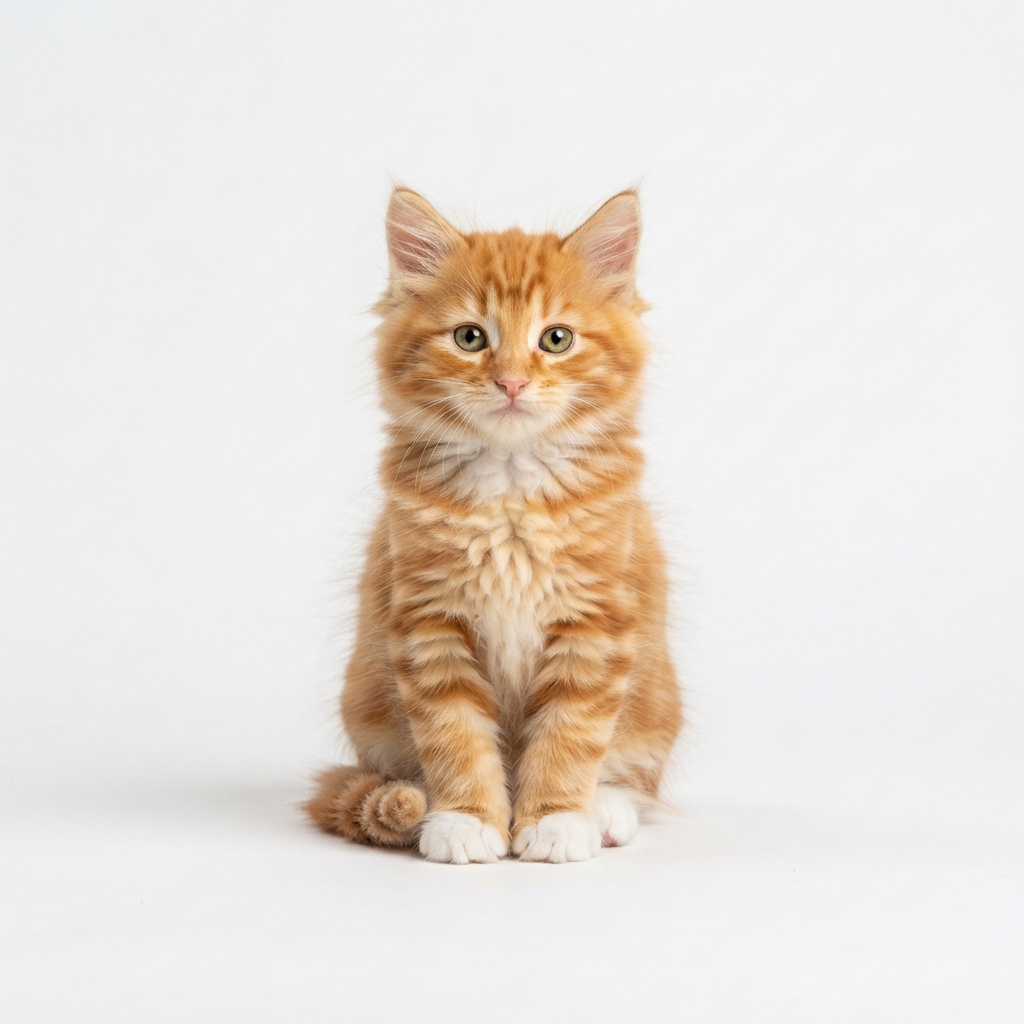
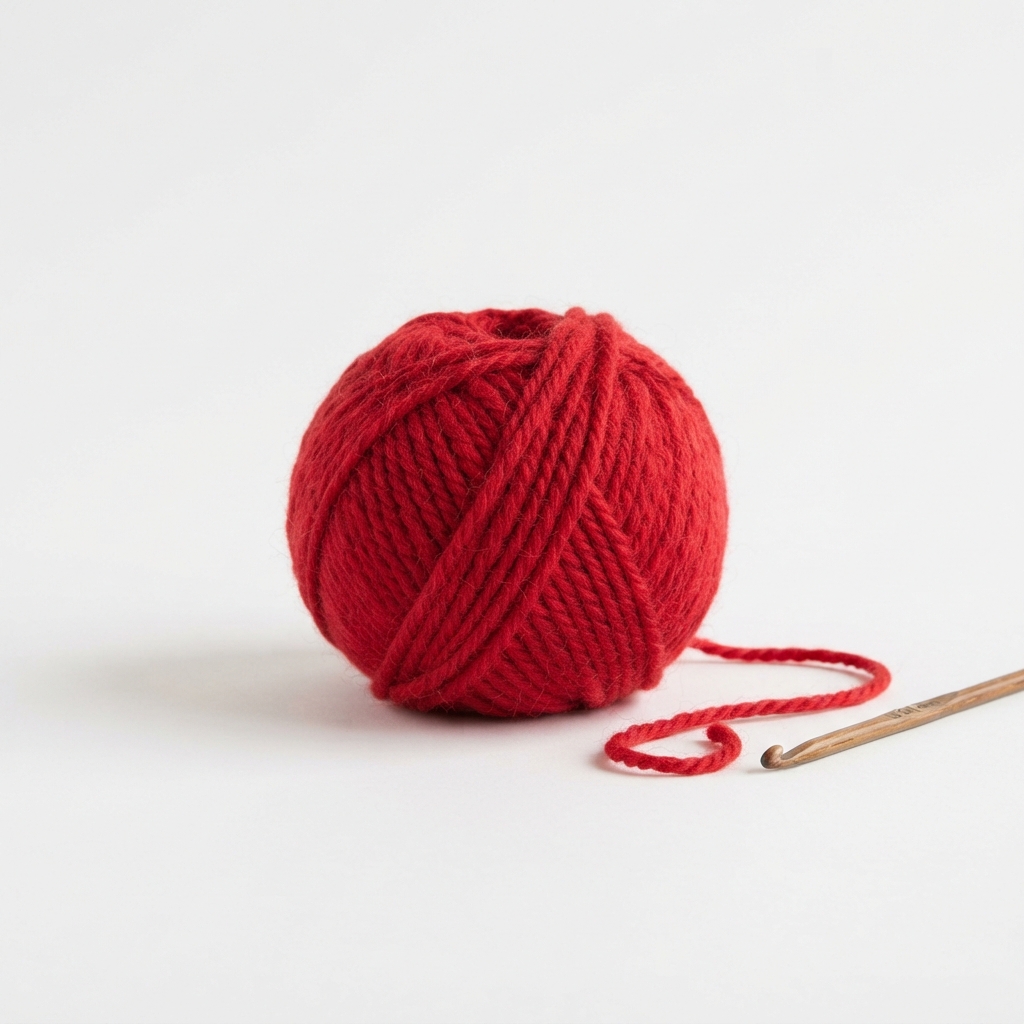
Two reference stills, uploaded in this order — a subject and an object for it to interact with:
Prompt:
<IMAGE_REF_0> playfully batting at <IMAGE_REF_1> on a sunlit wooden
floor, shallow depth of field, gentle handheld camera, soft purring
audio, no dialogue.
Result (3s, 16:9, 60 credits):
Both reference images carry through faithfully — same kitten, same yarn, now composited into one coherent scene neither image contained on its own. You can also combine roles within a single tag set — for example, using one image purely for its visual style and another for its subject: "in the style of <IMAGE_REF_0> a woman <IMAGE_REF_1> is walking." The tags are positional and correspond strictly to upload order, so keep track of which image you added first.
✂️ One-Shot Edit Mode: Change One Thing, Keep the Rest
Edit mode lets you take a video you already generated (or any MP4 you upload) and apply a single described change to it. It's important to understand what this actually is on Pixio: it's a one-shot operation, not a running conversation. Each Edit-mode generation is a fresh, independent call — there's no session or thread that remembers your previous edit. If you want to make several changes, you run several separate Edit generations, each starting from the output of the last, rather than "continuing to chat" with the model about one ongoing edit.
To use it, upload your source MP4 to the Video to edit field, set Mode to Edit, and describe the one change you want.
Keep Editing Prompts Simple
The single most important technique here: keep your edit prompt short. Long, literal descriptions of exactly how to redraw every frame tend to cause unintended changes elsewhere in the shot. Short, targeted instructions work better:
Make this video anime. Keep everything else the same.
is far more reliable than a paragraph describing brush strokes and line weight. Whatever the one change is, name it, then append "keep everything else the same" to constrain the model from touching anything else.
Worked Example
Starting from the reference-to-video result above, uploaded to the Video to edit field with Mode set to Edit:
Prompt:
Make this video anime. Keep everything else the same.
Result (3s, 60 credits):
Same kitten, same yarn, same camera framing and motion — restyled into a clean anime look in one pass, no re-description of the scene required.
A couple of practical notes on Edit mode in Pixio: the Aspect Ratio dropdown is still shown in the form, but it has no effect once a video is attached — the edit inherits the source video's aspect ratio automatically. And per Pixio's own field tooltip, editing uploaded videos is unavailable in the EEA, Switzerland, and the UK.
💡 Pro Tips for Gemini Omni Flash Success
Tip 1: Decide Single-Shot vs. Multi-Shot Up Front
If your prompt describes more than one beat, Omni Flash will likely cut between them on its own. Add "in a single continuous shot, no scene cuts" the moment you want one unbroken take instead.
Tip 2: Write Your Negative Constraints as Plain Sentences
There's no negative-prompt field — put exclusions directly in the prompt: "no dialogue," "no extra sound effects," "no on-screen text." Treat these as regular instructions, not metadata.
Tip 3: Direct the Audio Explicitly
If you don't specify audio, you'll get a plausible guess. If you have a specific mood — a techno beat, a tinny radio, total silence — say so in the same prompt as your visual description.
Tip 4: Use Bracket Timecodes for Precise Choreography
For anything more complex than "then this happens," structure your prompt with [0-3s], [3-6s], [6-10s] blocks to control pacing directly rather than relying on natural-language sequencing.
Tip 5: Keep Edit Prompts Short and Additive
"Make it anime. Keep everything else the same." beats a long, descriptive rewrite every time. Name the one change, then anchor the rest.
Tip 6: Tag Your Reference Images Deliberately
With only one upload slot for up to 6 images, <FIRST_FRAME> and <IMAGE_REF_N> are how you tell Omni Flash what each image means. Set Mode explicitly rather than relying on Auto whenever you're using tags, so there's no ambiguity about interpretation.
Tip 7: Remember SynthID is Always On
Every video Gemini Omni Flash produces carries an invisible SynthID watermark — a Google Gemini characteristic that applies regardless of which platform you generate through. It doesn't change how you prompt, but it's worth knowing your outputs are identifiable as AI-generated at the pixel level.
📚 Key Features at a Glance
Generation Modes
- Auto (infers mode from prompt/uploads)
- Text to Video
- Image to Video with
<FIRST_FRAME> - Reference to Video with
<IMAGE_REF_N> - One-shot Edit mode
Prompting Techniques
- Single-shot vs. multi-shot control
- Negative constraints embedded in prompt text
- Explicit audio direction
- Natural-language and bracket timecodes
- Meta-prompting for detail and realism
- Exact on-screen text rendering
Duration & Pricing
- 3-10 second clips, 720p, 24 FPS
- 20 credits per second
- Default 5s = 100 credits
- Minimum 3s = 60 credits
Technical Details
- 16:9 and 9:16 aspect ratios
- Up to 6 reference images per generation
- Native multimodal reasoning (text, image, audio, video)
- SynthID watermarking on all outputs
🎯 Try Gemini Omni Flash Now in Pixio
Ready to create your first Gemini Omni Flash video?
Start with a text prompt, animate a still image with <FIRST_FRAME>, or combine multiple references with <IMAGE_REF_N> — then refine your result with a one-shot Edit pass.